

An Entity Plan Report does not deduct from your overall report count. The Entity Planner is only available for Professional and Enterprise Subscribers.
Click Here to view and download a sample Entity Plan Report.
Use the Entity Planner without a Reasonable Compensation Report
Navigate to the Tools tab and select Entity Planner
Input the required parameters.
If desired, specify the forecasted growth or decline of your client’s Profit and/or Compensation.
Scroll down to view the results which include 10 Year Projected Cost Savings and associated graphs.
Note: Required fields include Total Annual Net Profit, Reasonable Compensation, Estimated FUTA & SUTA Tax.


Generate an Entity Plan Report with a Reasonable Compensation Report
Navigate to the Clients tab and select the Reasonable Compensation Report you will be running the Entity Plan for.
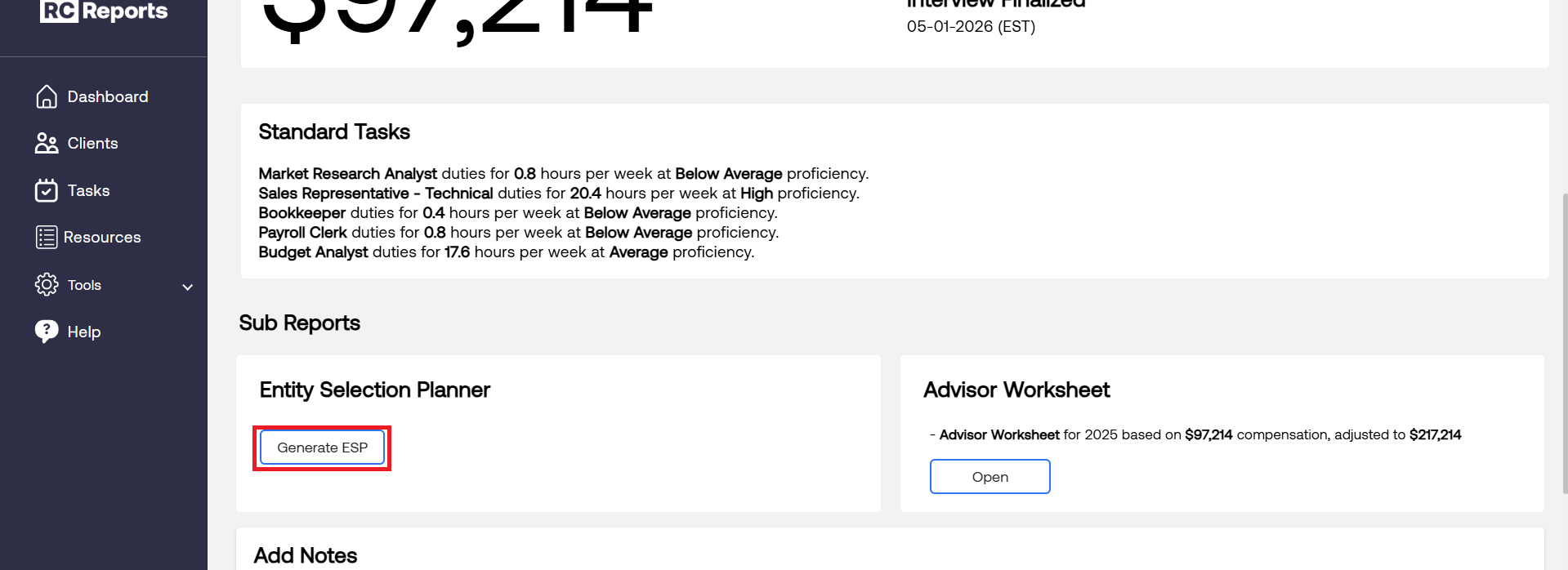
Select Generate ESP in the Sub Reports section.
Input the required parameters (Total Annual Net Profit, Reasonable Compensation, and Estimated FUTA & SUTA Tax).
If desired, specify the forecasted growth or decline of your client’s Profit and/or Compensation.
Select Save Changes.
Scroll Up to view the results which include 10 Year Projected Cost Savings and associated graphs.
Select View Report PDF to generate an Entity Plan Report.
Note: The Reasonable Compensation field will contain the wage associated with the client’s reasonable compensation report and is not editable.



For questions or concerns, contact RCReports at 720-279-8800 or support@rcreports.com