

Click Here to view a sample of a Cost Approach Reasonable Compensation Report.
Initiate a Cost Approach Report
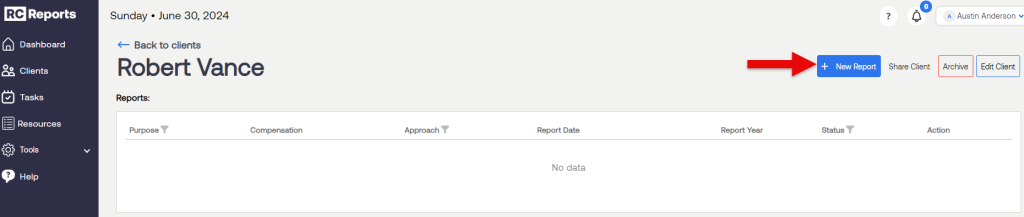
Select the client you wish to run a report for from the Clients tab, and then click New Report.
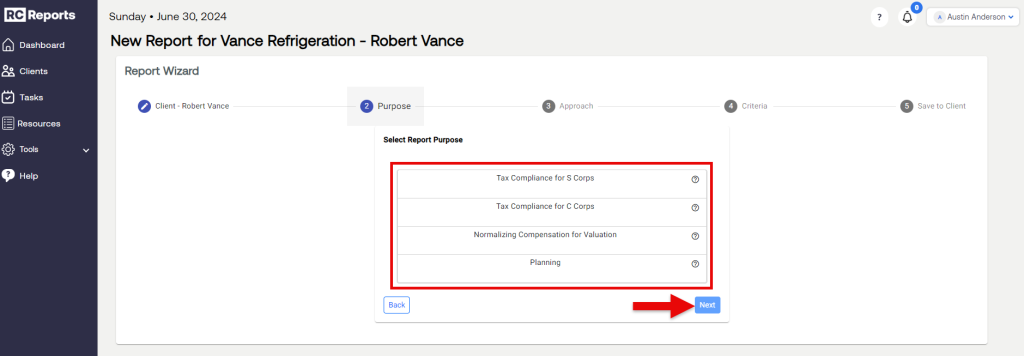
Select the Report Purpose and click Next.
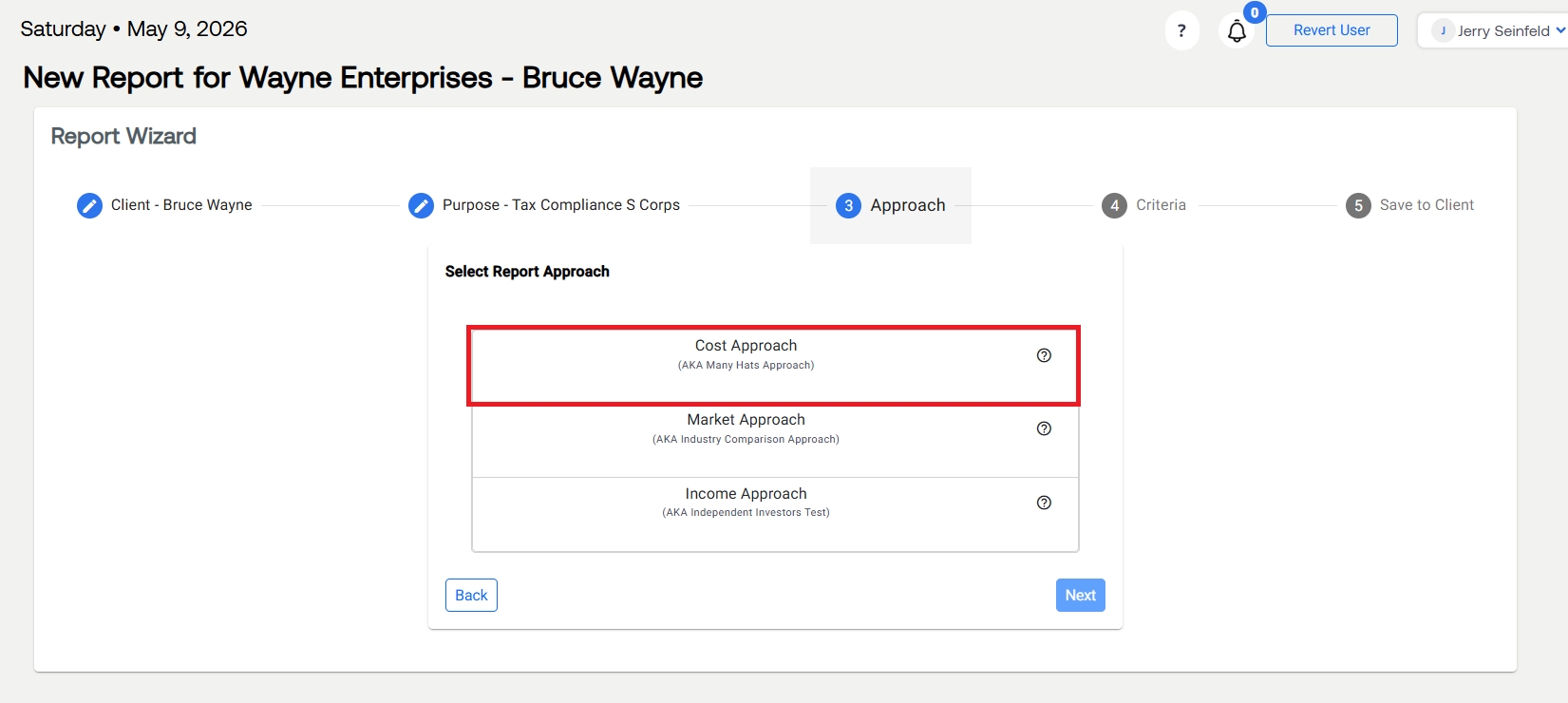
Select Cost Approach and click Next.
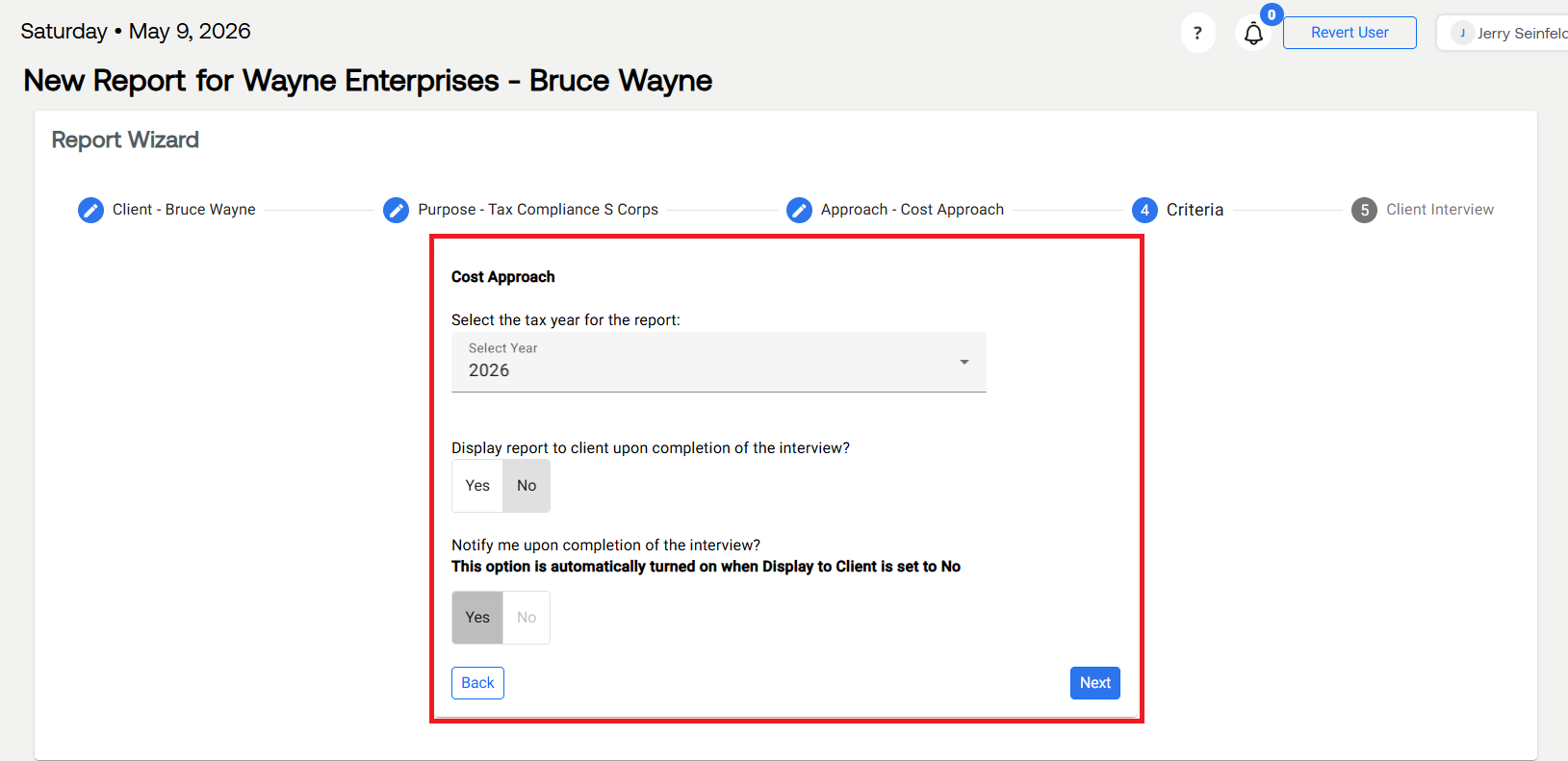
Select the Tax Year for the report.
Select if you want to be notified when your client completes the online interview and click Next.
Send the Interview to Your Client
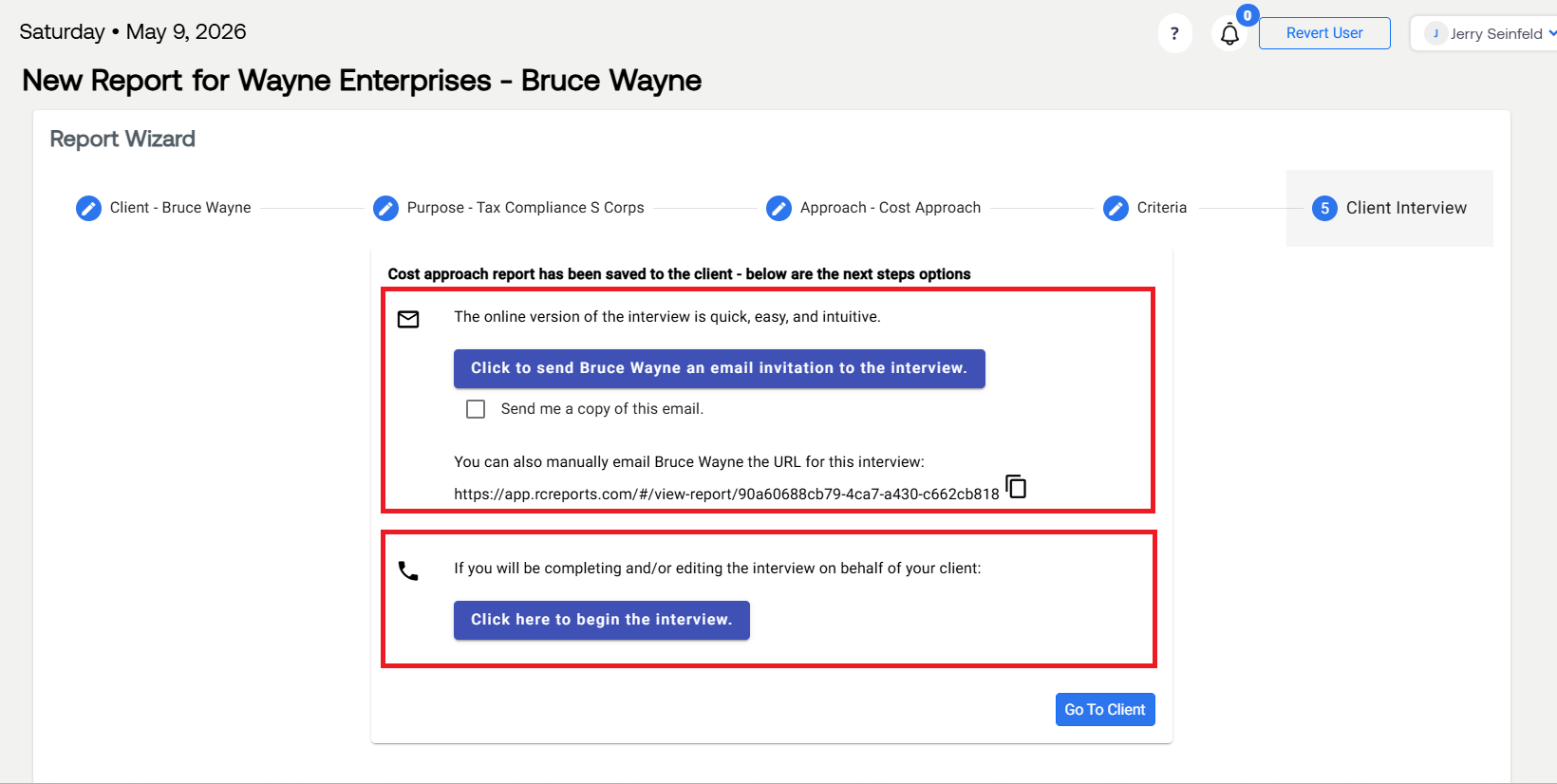
There are two options for performing the Cost Approach Client Interview:
Option 1A - You can choose to send your client the email invitation using the RCReports automated email
Option 1B - You can also copy the interview URL to your clipboard and paste it into your own email editor for a more custom look.
Option 2 - To complete the interview for or with your client select Click here to begin interview.
The Client Interview
Step 1: Time & Location
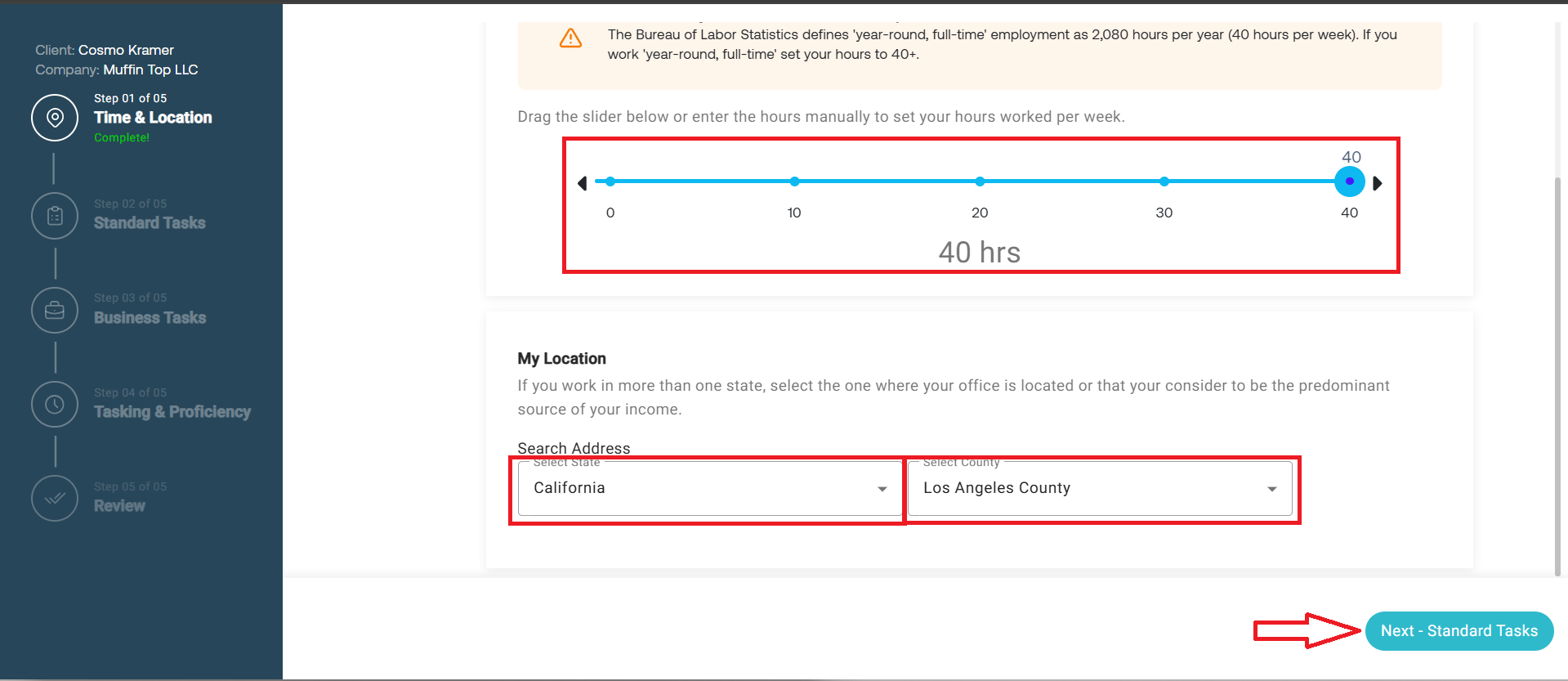
To start, specify the average number of hours you spend on your business every week.
Select the state and county where your business is located.
Click Next - Standard Tasks
Step 2: Standard Tasks
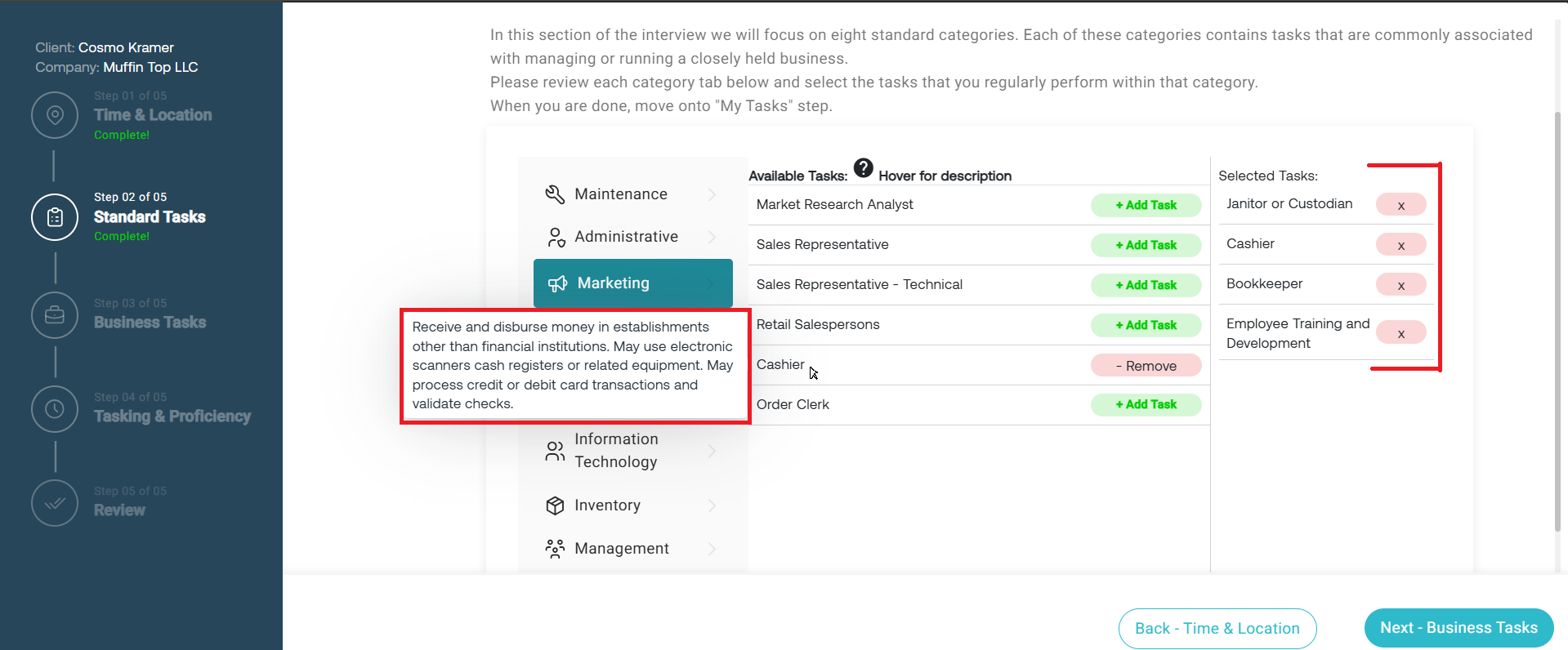
A Standard Task is generally a task you perform in your business that is administrative or does not generate revenue.
Browse each category and select the tasks you perform in your business by clicking + Add Task. Typically you only need to select tasks you spend more than an average of 15 minutes per week doing.
Note: You can hover over a task to view a detailed description.
BEWARE: Review the description for Chief Executive thoroughly and only select the task if you fit the description (i.e. you report to a board of directors, etc.). Incorrectly selecting this
task can result in inflated wages.
When finished, click Next - Business Tasks.
Step 3: Business Tasks
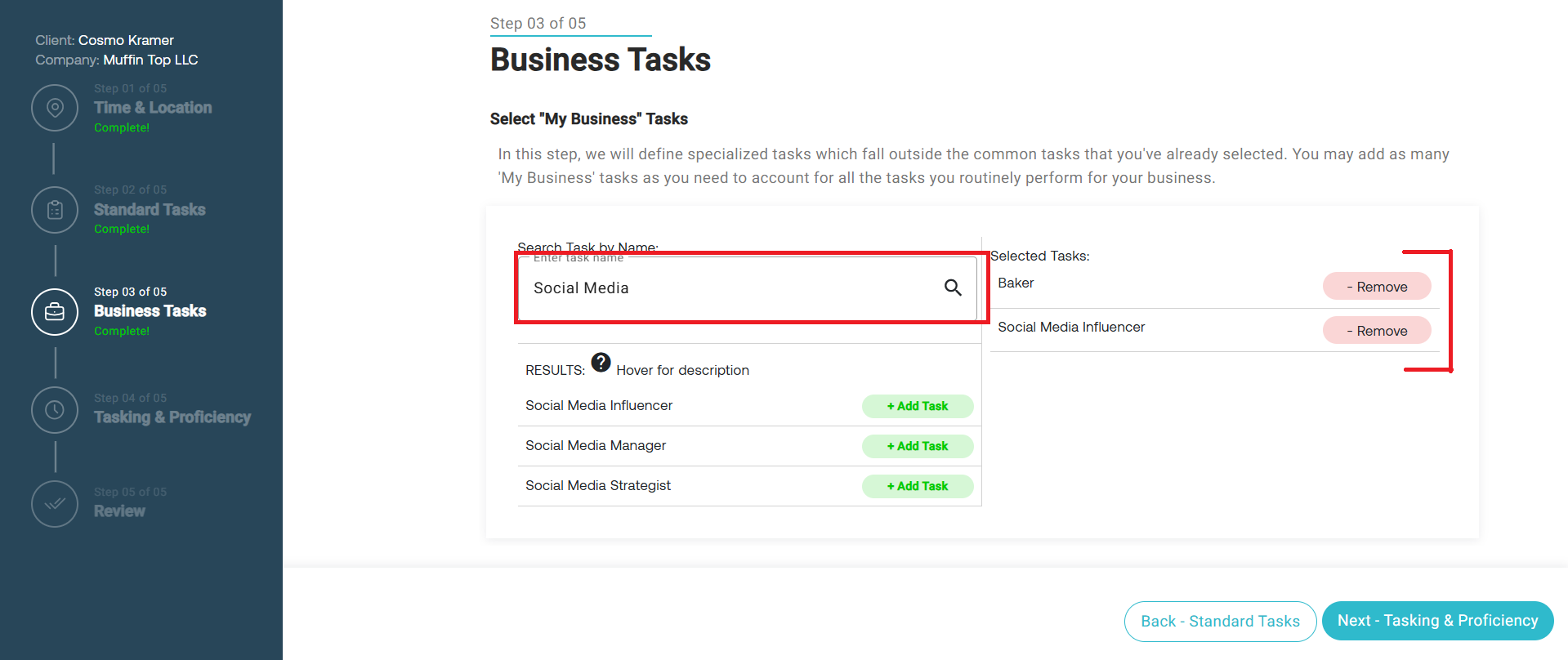
A Business Task is a task that typically generates revenue and/or is specific to your business (i.e. Real Estate Agent, HVAC Contractor, Lawyer, Dentist, etc.).
Use the Search bar to find a job title.
Hover over the results to view descriptions of each task and click + Add Task for any and all that apply. We typically recommend keeping the total number of tasks to a maximum of 7-8 tasks.
When finished, click Next – Tasking & Proficiency
Step 4: Tasking & Proficiency
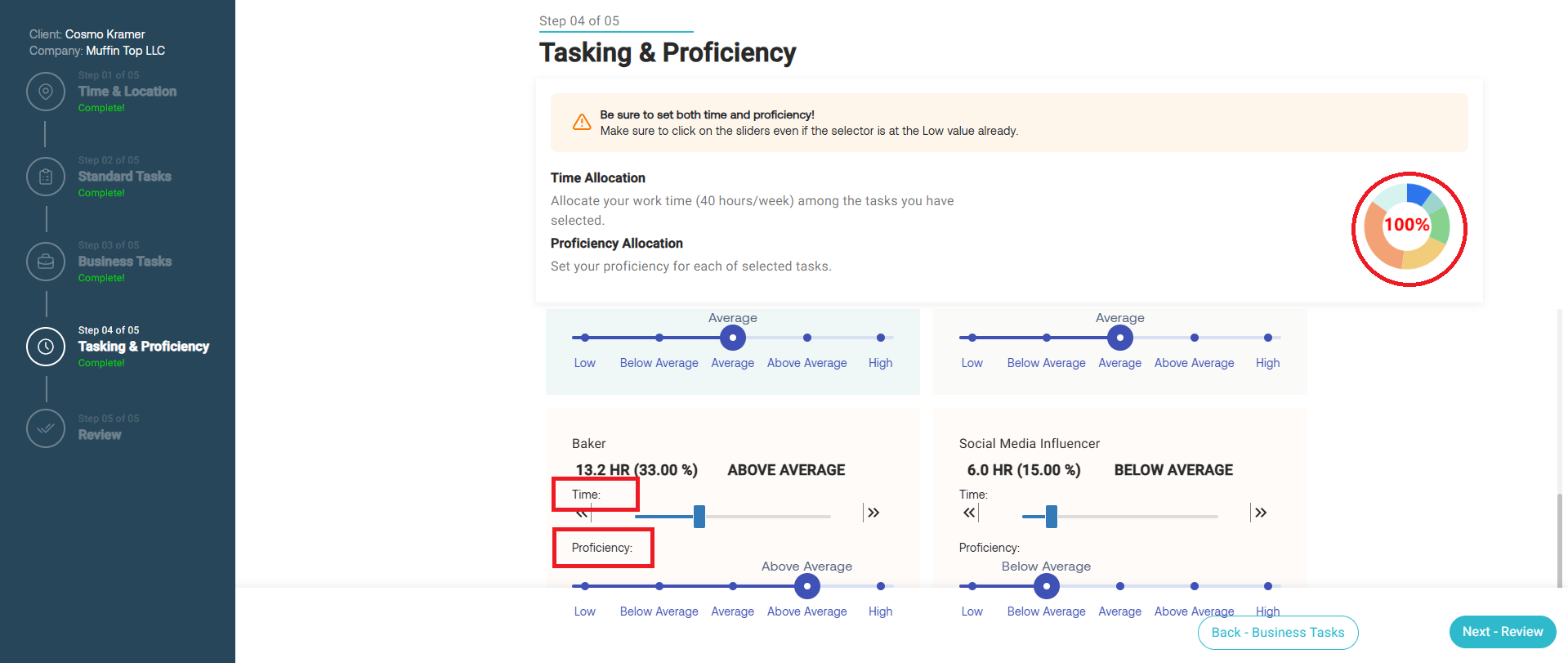
In this step you will allocate time to each task and specify how proficient you are in each task.
For each task, move the slider right/left to indicate the average time you spend on this the task each week.
The chart will update to reflect the time spent on each task. This chart must be at 100% in order to complete the report.
When done, click Next – Review.
Note: Unless you have specialized in a task (meaning you worked at a full-time job doing this task), your proficiency for that task is likely Average, Below Average, or Low.
Note: Each task must have time allocated to it. You will not be able to proceed to the final step if there is a task with 0 hours.
Step 5: Review
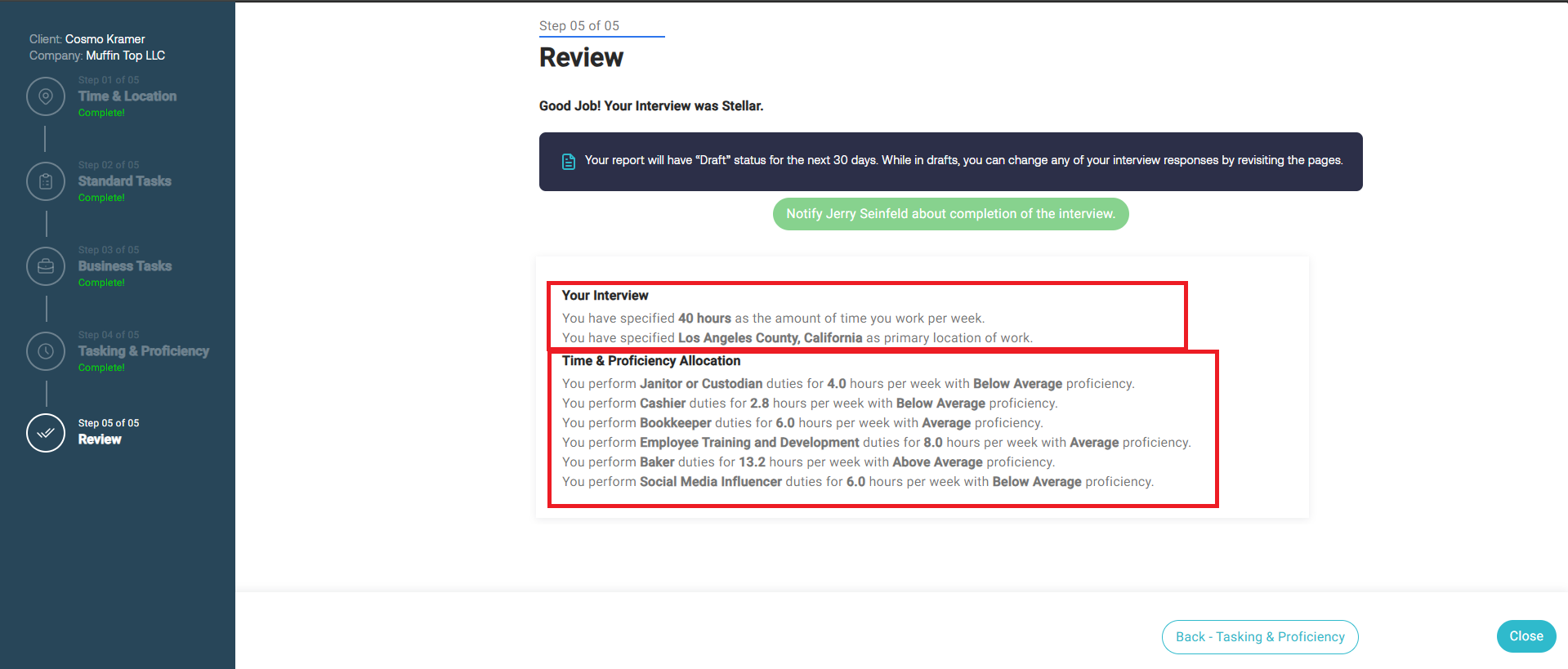
Review the summary of your inputs and your reasonable compensation report.
If needed, adjustments can be made to the report for 30 days by clicking on any step of the interview. After 30 days the report will be automatically finalized.
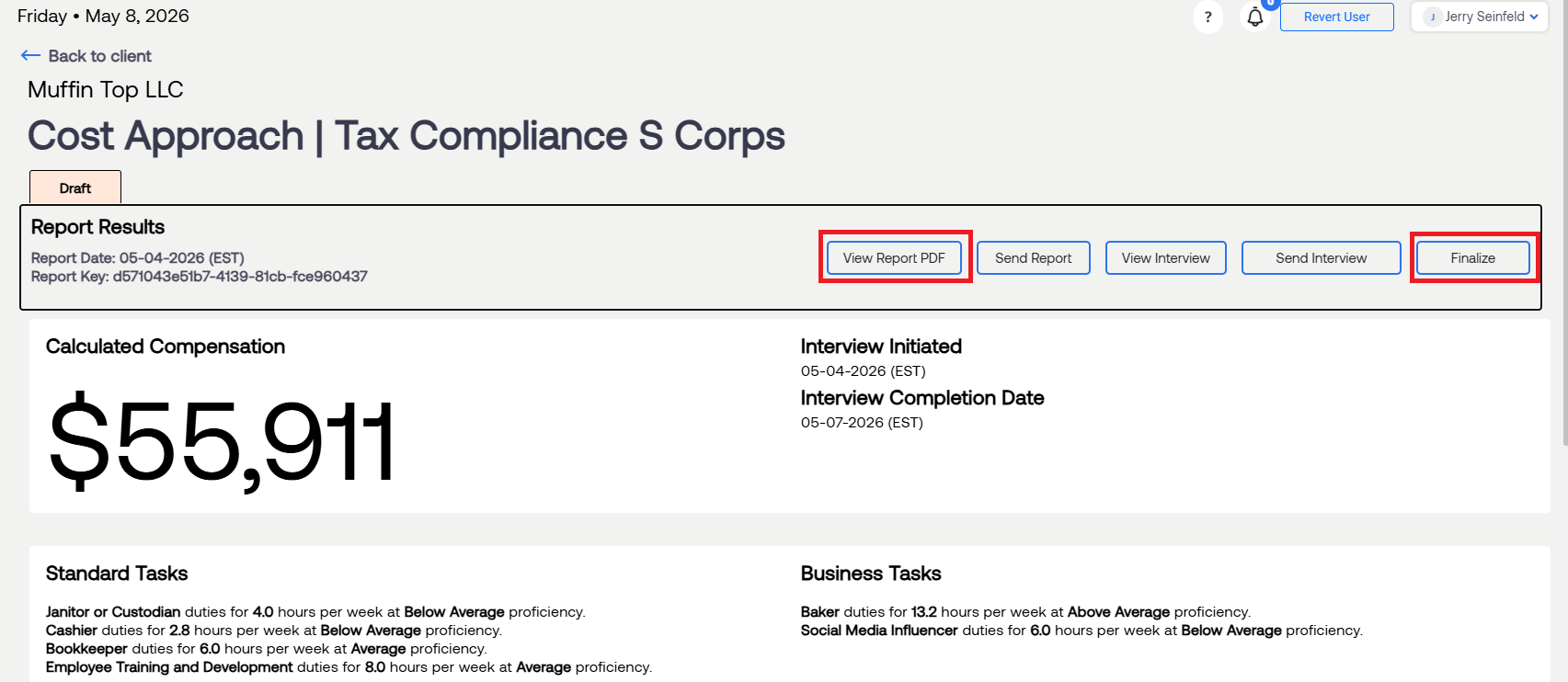
A Draft PDF of the reasonable compensation report becomes available under View Report PDF
When all edits have been made, finalize your reasonable compensation report by selecting Finalize.
Step 6: View & Download Report
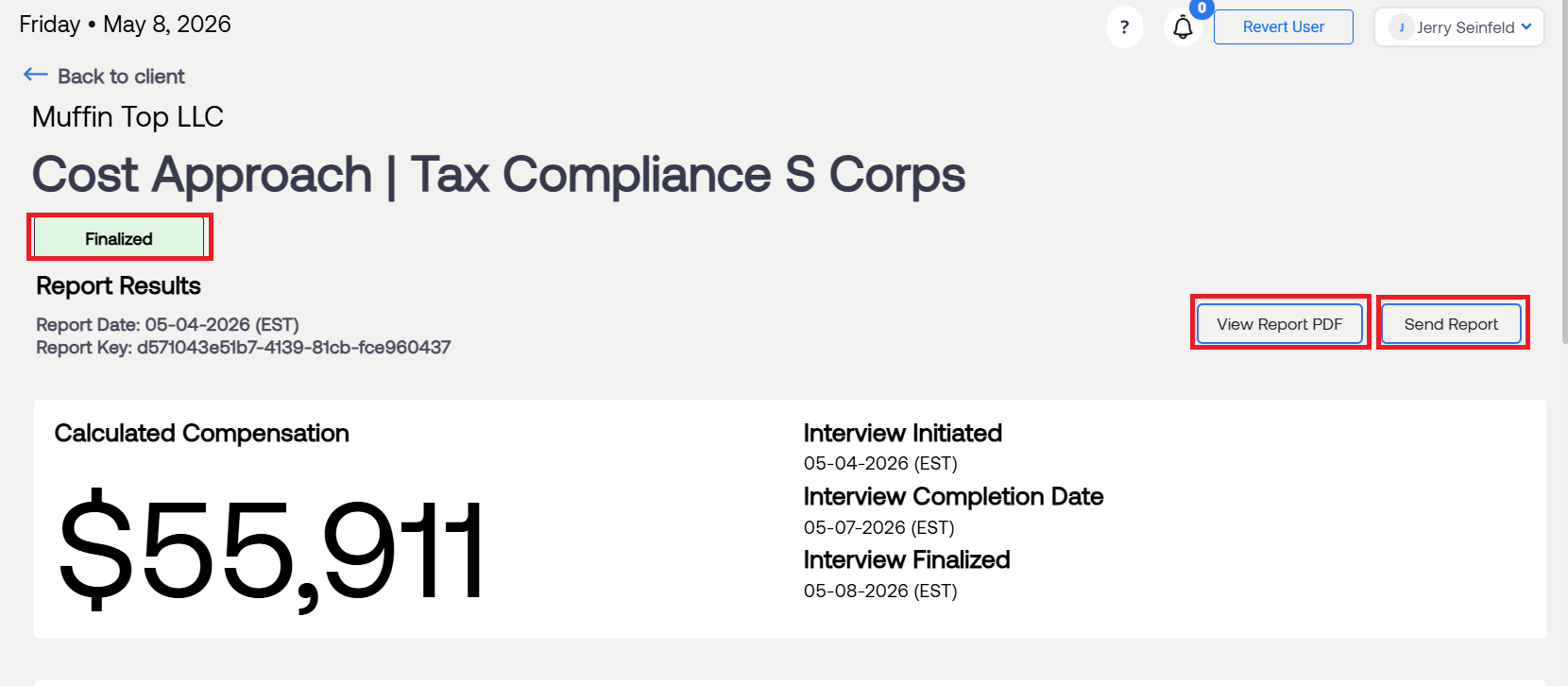
Once a report is finalized, the final report can be viewed and downloaded under View Report PDF. It can also be sent directly to the client by selecting Send Report.
For questions or concerns, contact RCReports at 720-279-8800 or support@rcreports.com