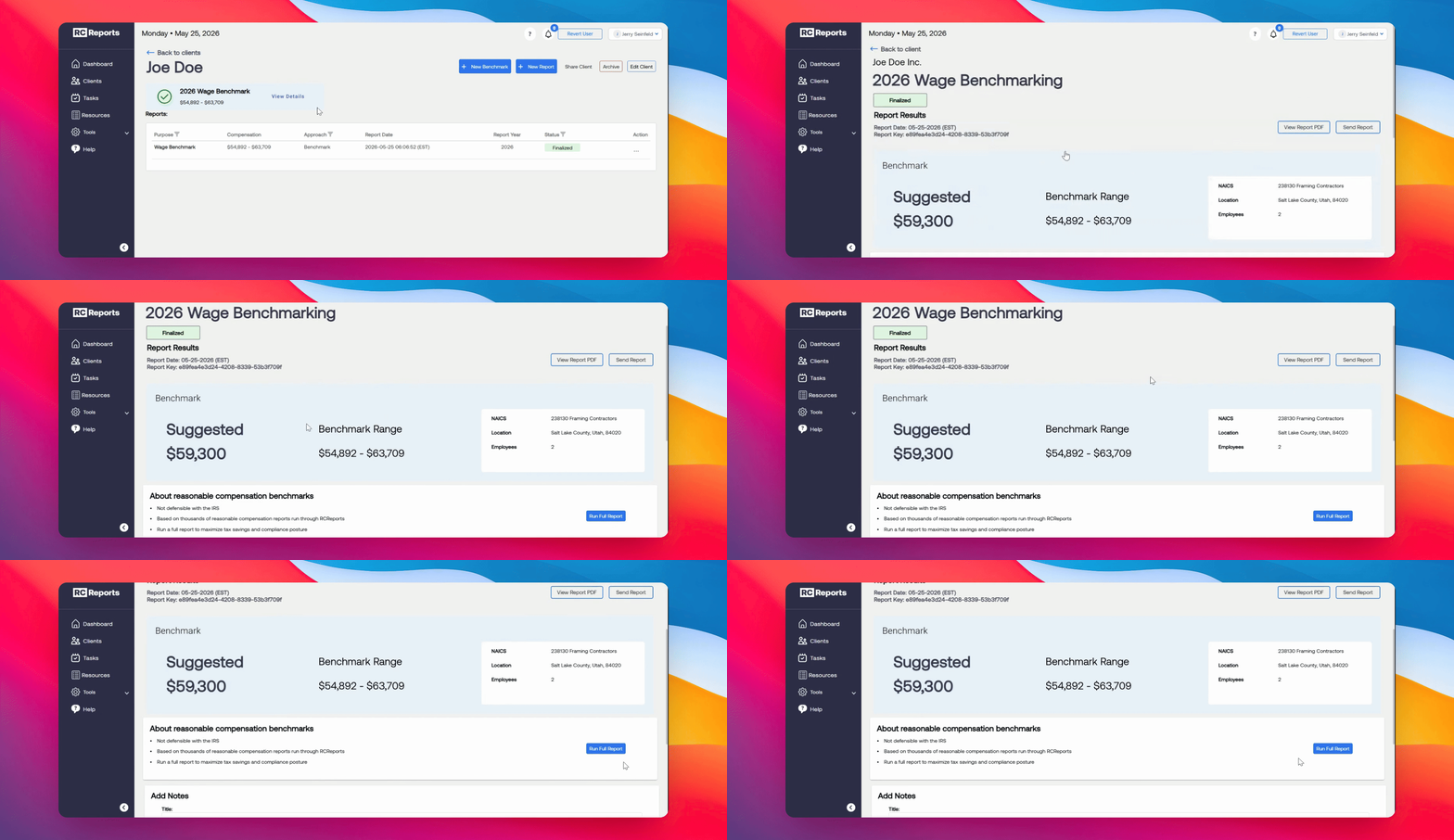

This guide covers two methods for running a benchmark for your client: one for NEW clients and one for EXISTING clients.
Method 1: Run Benchmark for NEW Clients
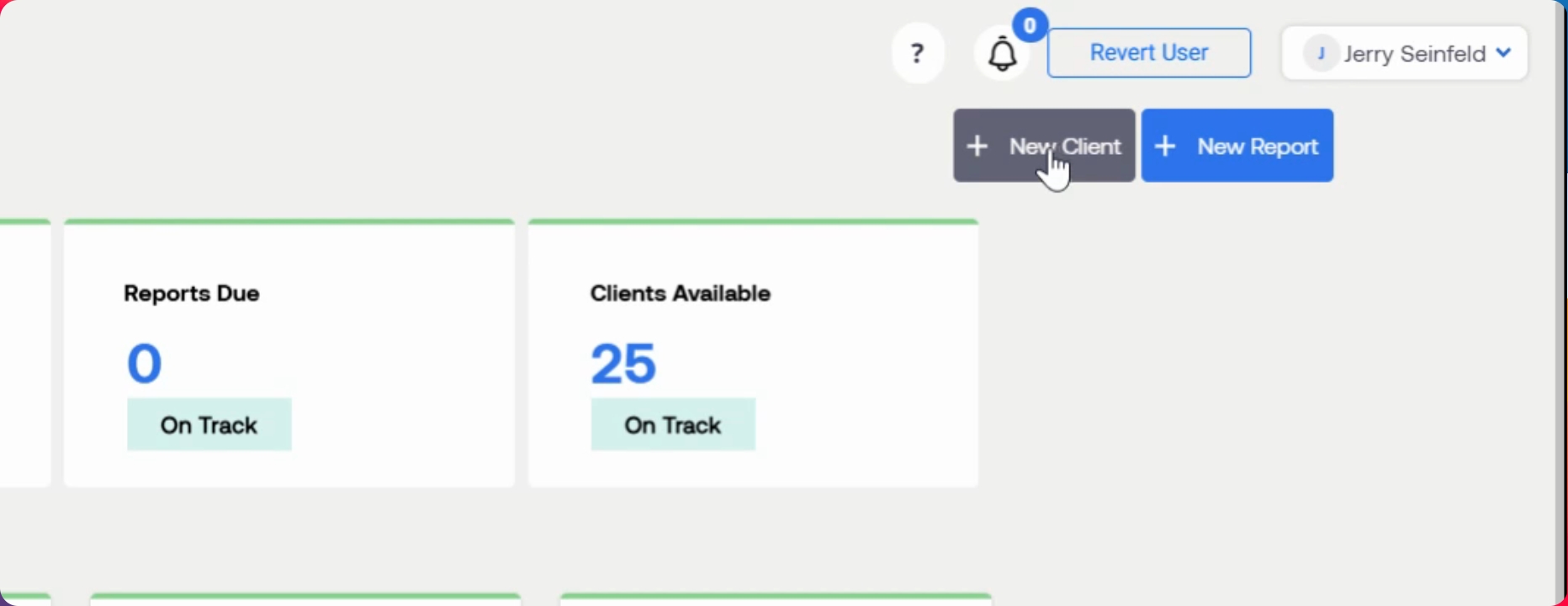
In the dashboard, click the New Client button in the top right corner. Fill out the required fields: Name, Company, Email, and NAICS code. Also enter the Zip Code and Number of Employees. Optional fields are not required.
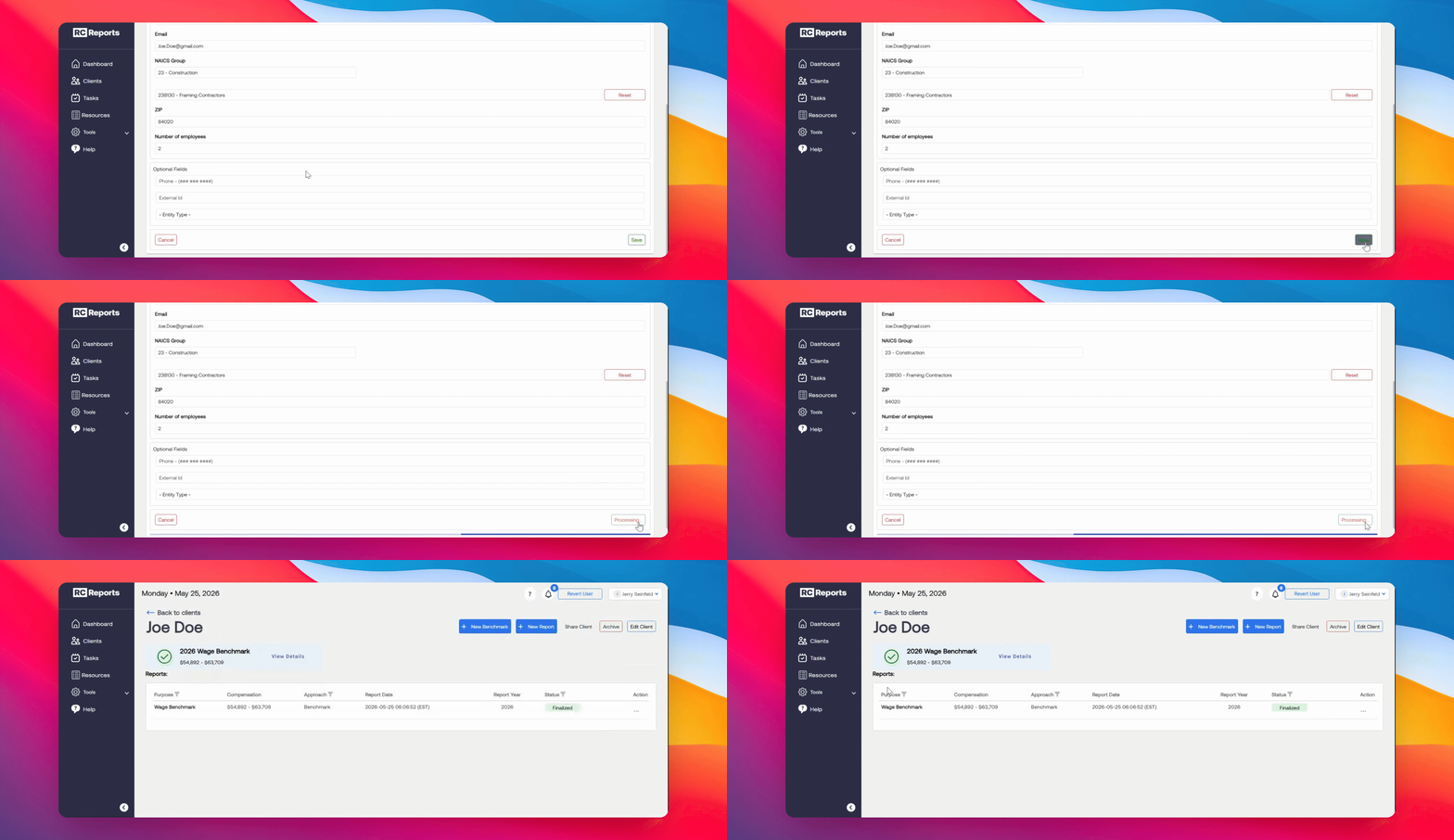
After entering all required information, click the Save button in the bottom right corner. A wage benchmark will be generated automatically.
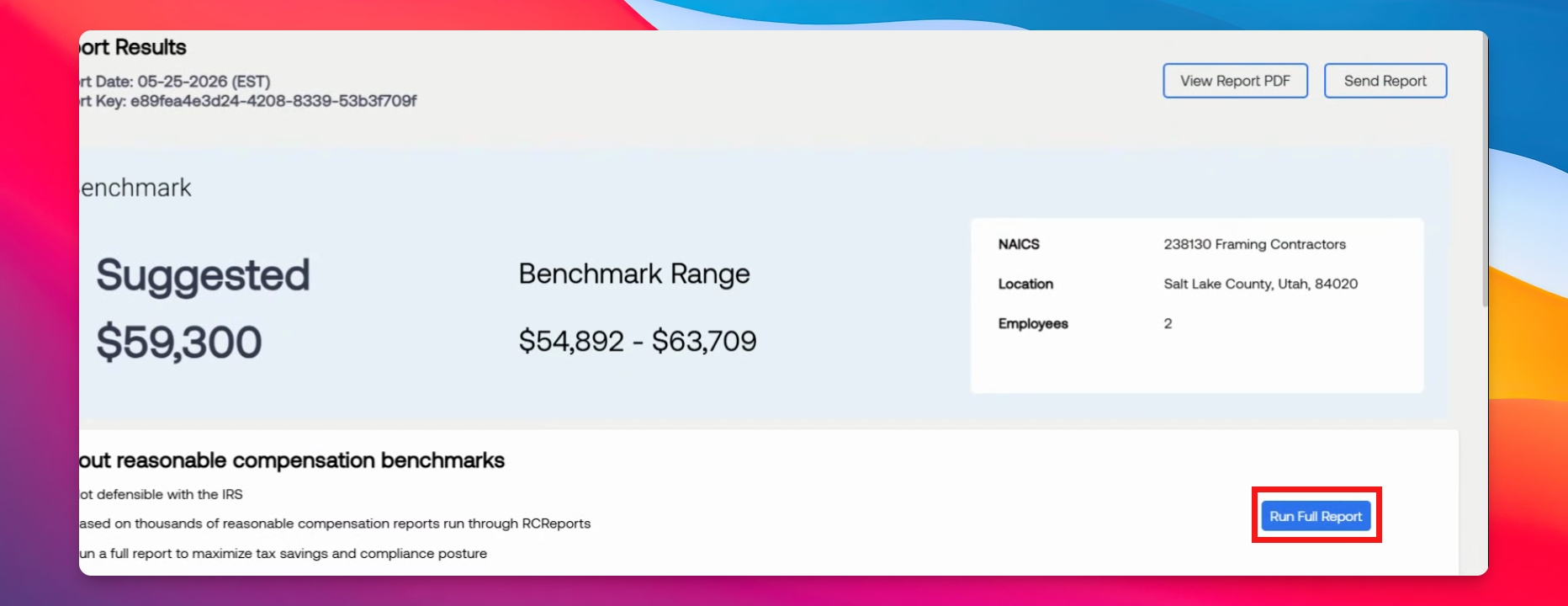
Select the benchmark to view its details. You will see the benchmark range and a Run full report button. Click this button to generate a full reasonable compensation report for your client.
Method 2: Benchmark for an EXISTING Client
For a client that already exists but does not have a benchmark, click the New Benchmark button. This opens the report wizard. Select the client to check if all required information is present. If any information is missing, such as Zip Code or Number of Employees, click Edit client and fill in the necessary fields.
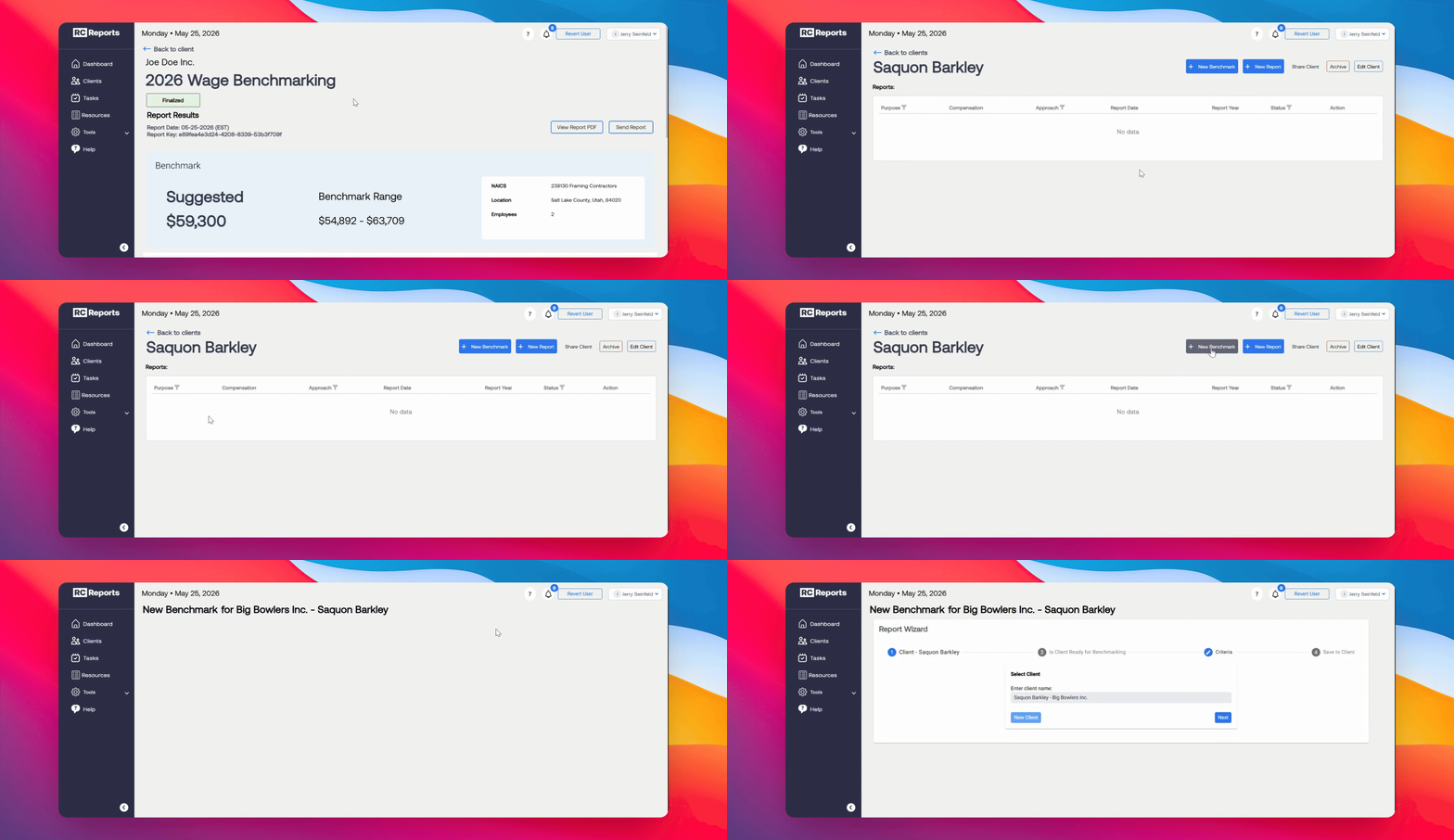
Once the required information is entered, a benchmark will be generated. You can then select the benchmark, view the suggested range, and run a full reasonable compensation report at any time.