
Every firm should have their own, unique user. It is against RCReports Terms and Conditions to share a user account with other firms.
Manage Users and Permissions
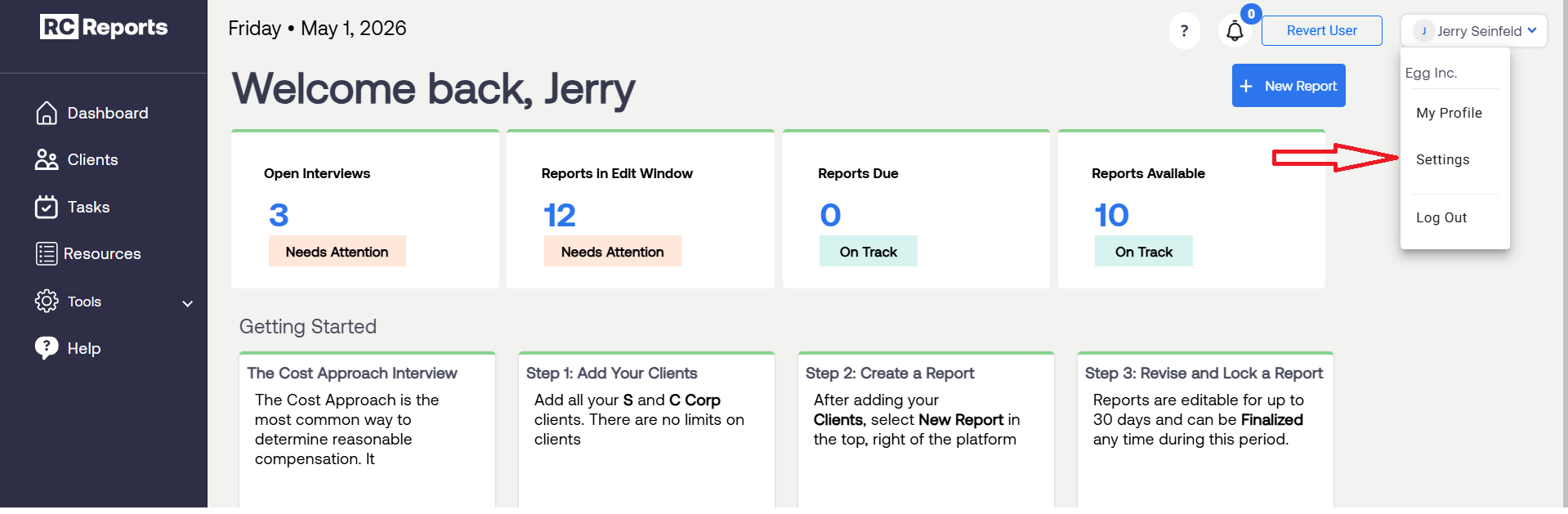
Navigate to Settings by clicking on your name on the upper, right side of your dashboard.
You must be an Owner or Admin type user to add users or change access rights.
Purchase Additional Users:
Under the Users tab select Purchase User.
Specify how many users you would like to add and select Buy Now


Activate Previously Purchased Users:
Under the Users tab select Add User.
Select Active then input the User’s First Name, Last Name, Email, and Phone Number, select the Roles you would like this user to have, and the Get Started Attributes you would like the user to see.
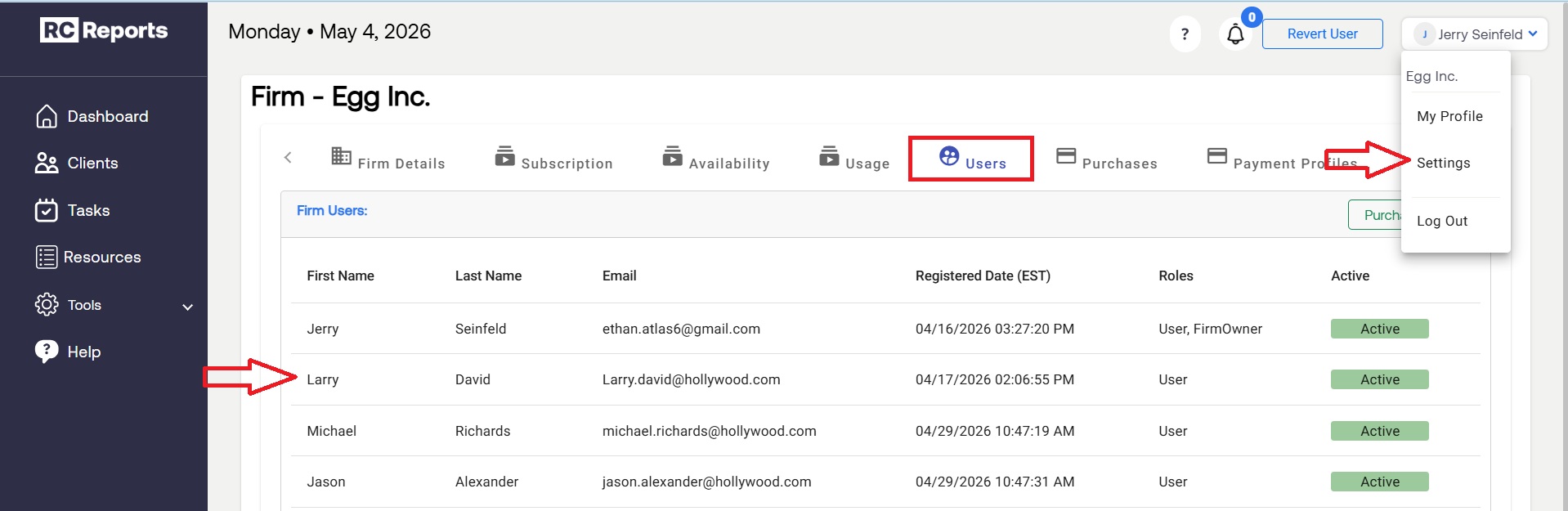
A user can be viewed and managed after being added by clicking your name and selecting the Settings panel
Note: To save your inputs and activate the user, select Add when complete.


Assign Firm Admins
Under account Settings, the Firm Owner can select additional users to be Firm Admins. This allows other users to have access to account information such as purchasing more reports and managing subscription renewals.
As the Firm Owner, open Settings, go to the User tab, and select the user you would like to make admin.
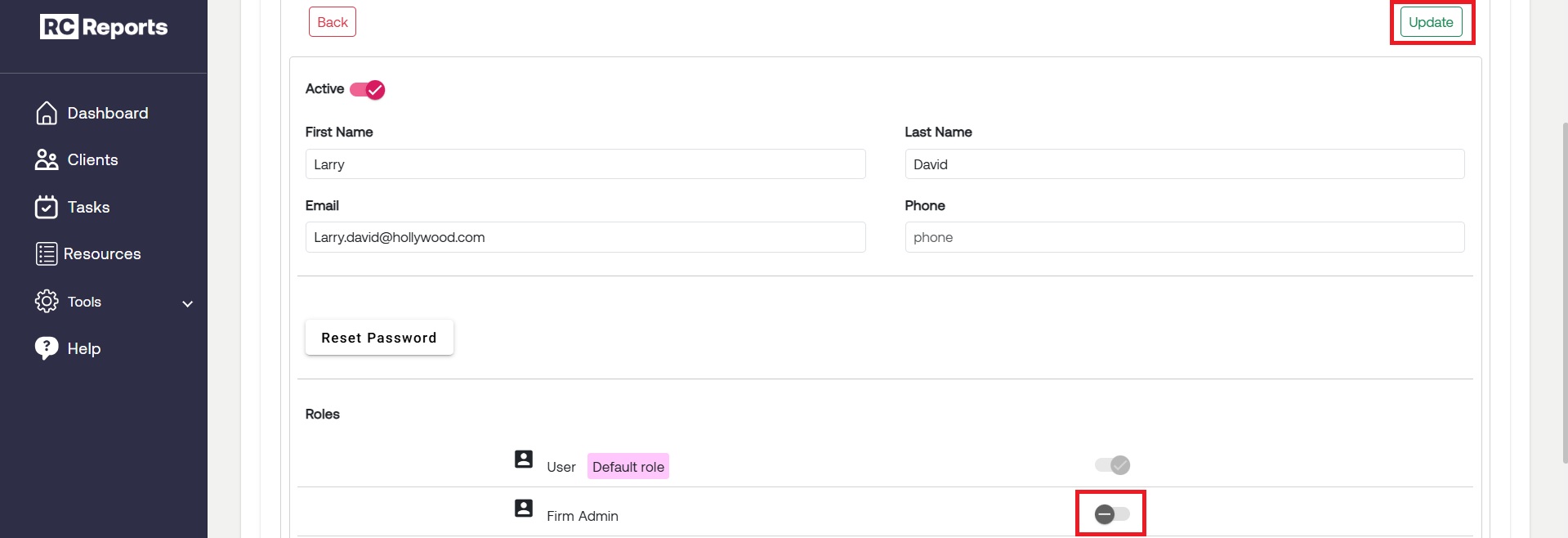
On the user's page, under the section Roles, select the slider next to Firm Admin to change their status. Select Update in the corner of the screen to update the change.
Note: This can only be done as the Firm Owner. Regular users do not have access to account settings or role permissions.
For questions or concerns, contact RCReports at 720-279-8800 or support@rcreports.com