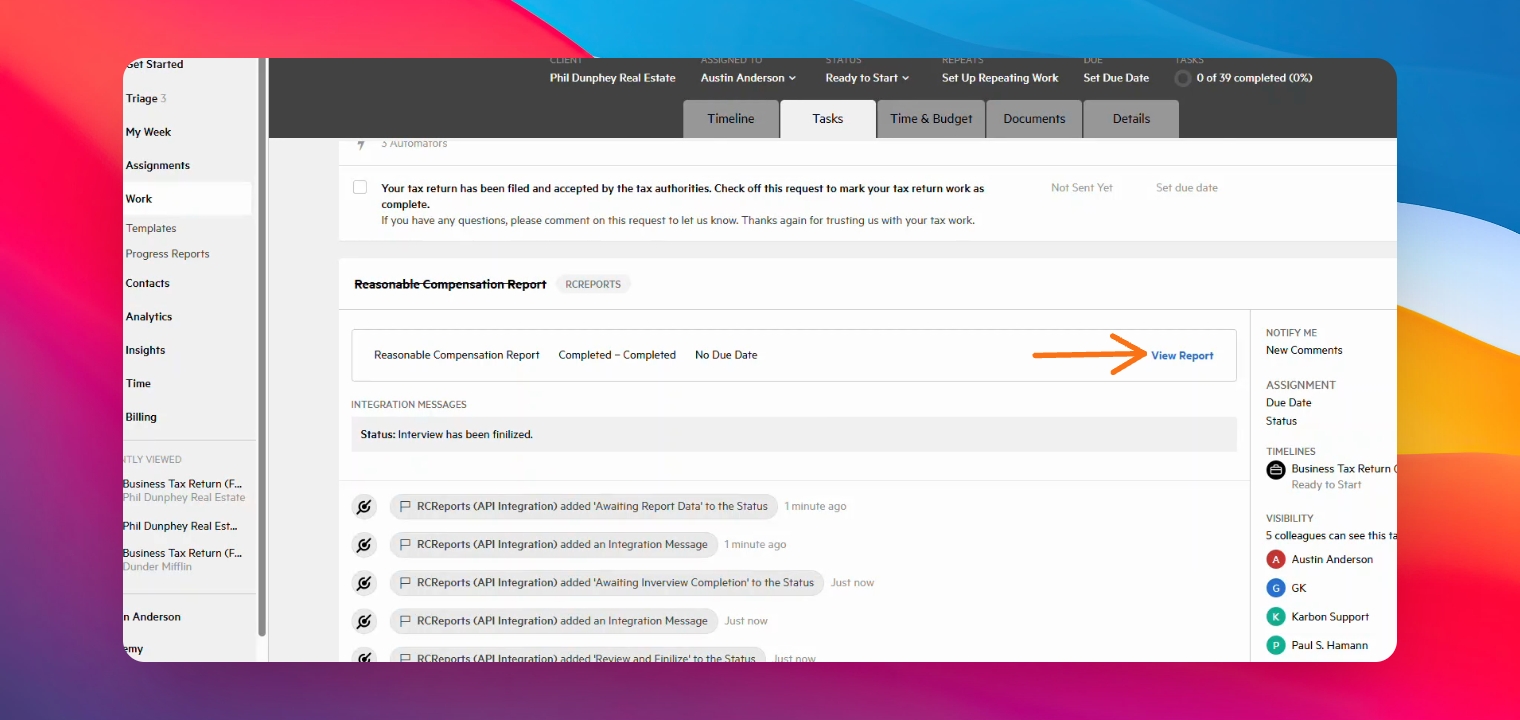

The RC Reports and Karbon integration allows you to sync clients between the two platforms and generate, review, and store Reasonable Compensation reports within Karbon.
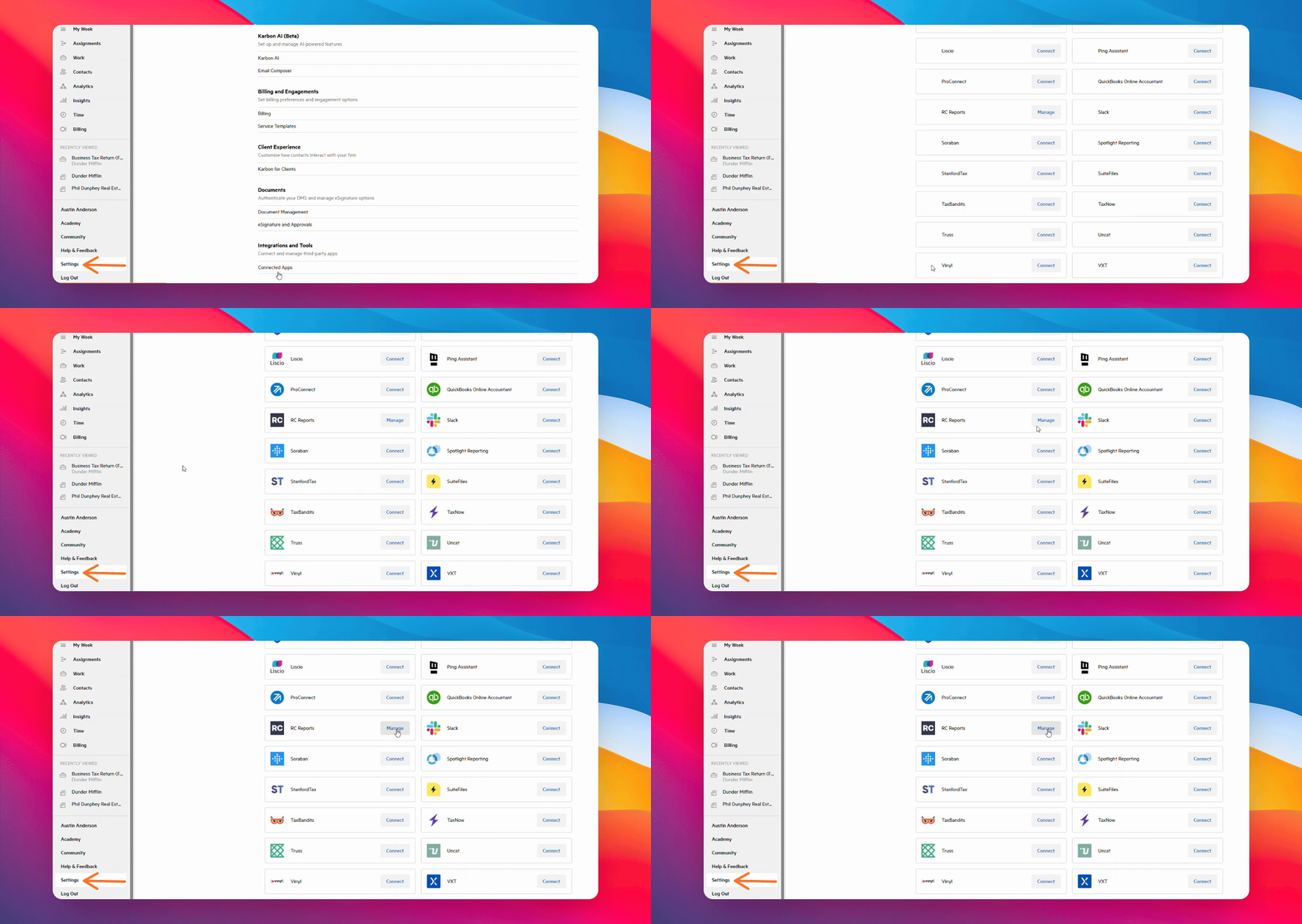
Step 1: Manage Connected Apps
Go to Settings within the Karbon interface. Click on Connected Apps, then click on Manage next to the RC Reports logo.
Step 2: Copy Connection Token
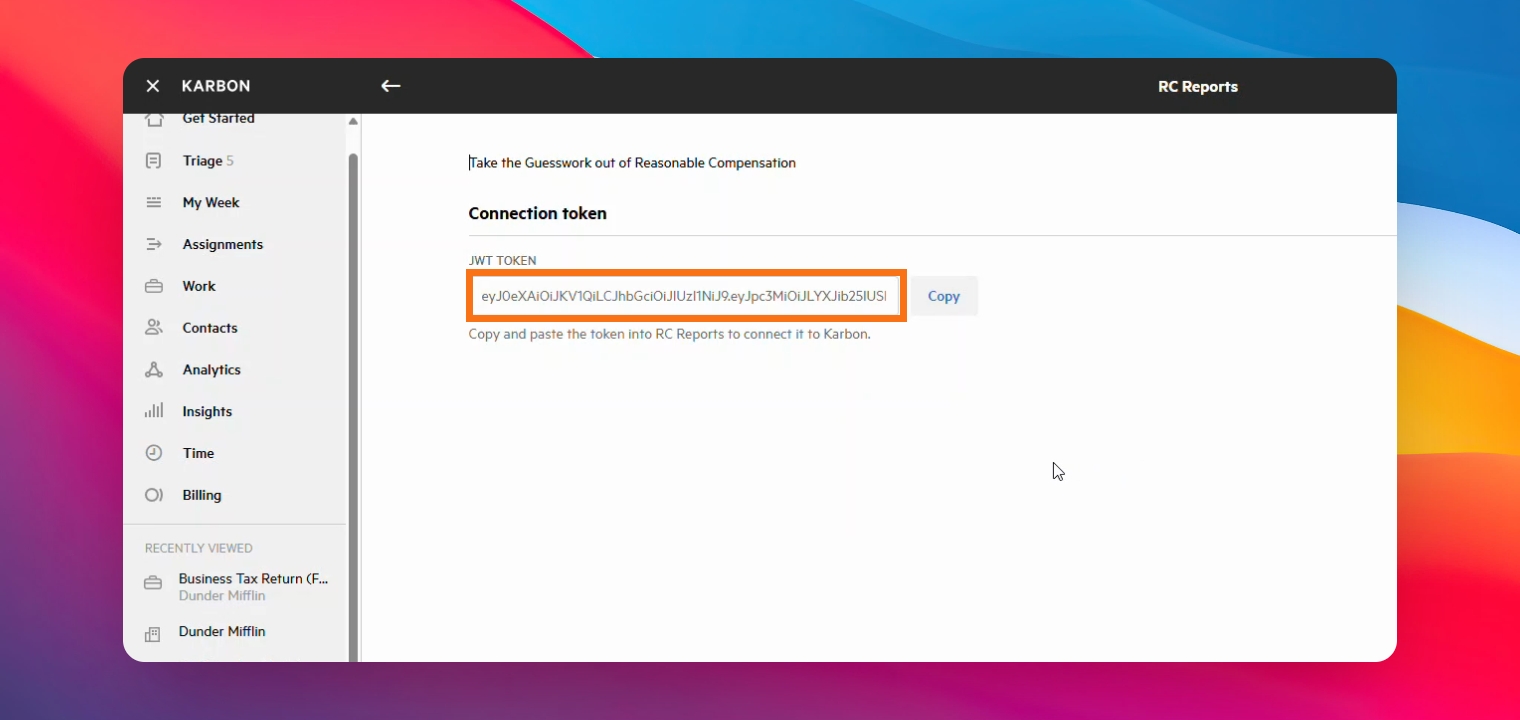
Copy the Connection token in Karbon.
Step 3: Paste the Token into the RCReports Integrations Tab
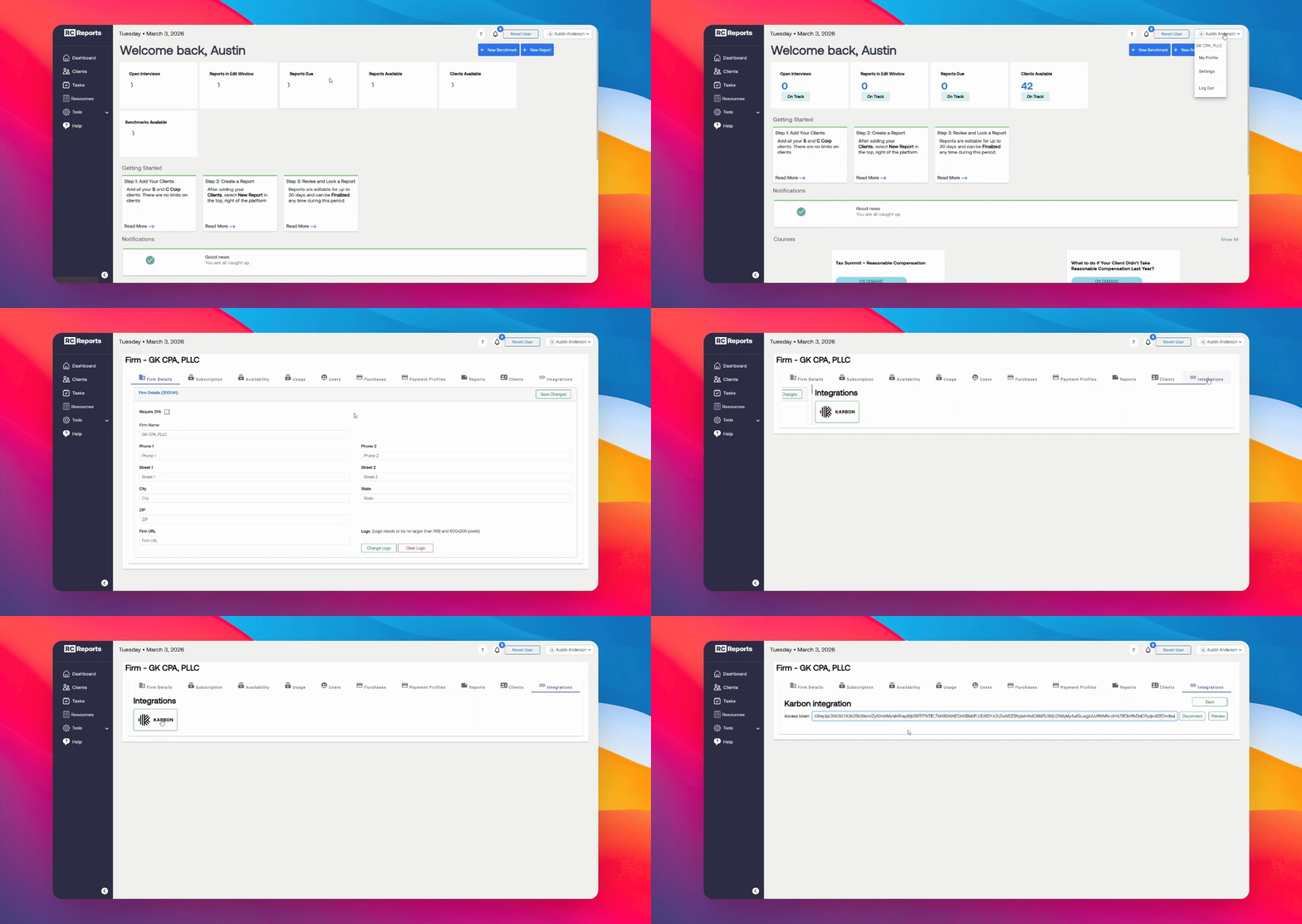
In RC Reports, click on your name in the top right corner and click on Settings. Go to the Integrations tab and click on the Karbon logo.
Paste the Integration token you copied earlier.
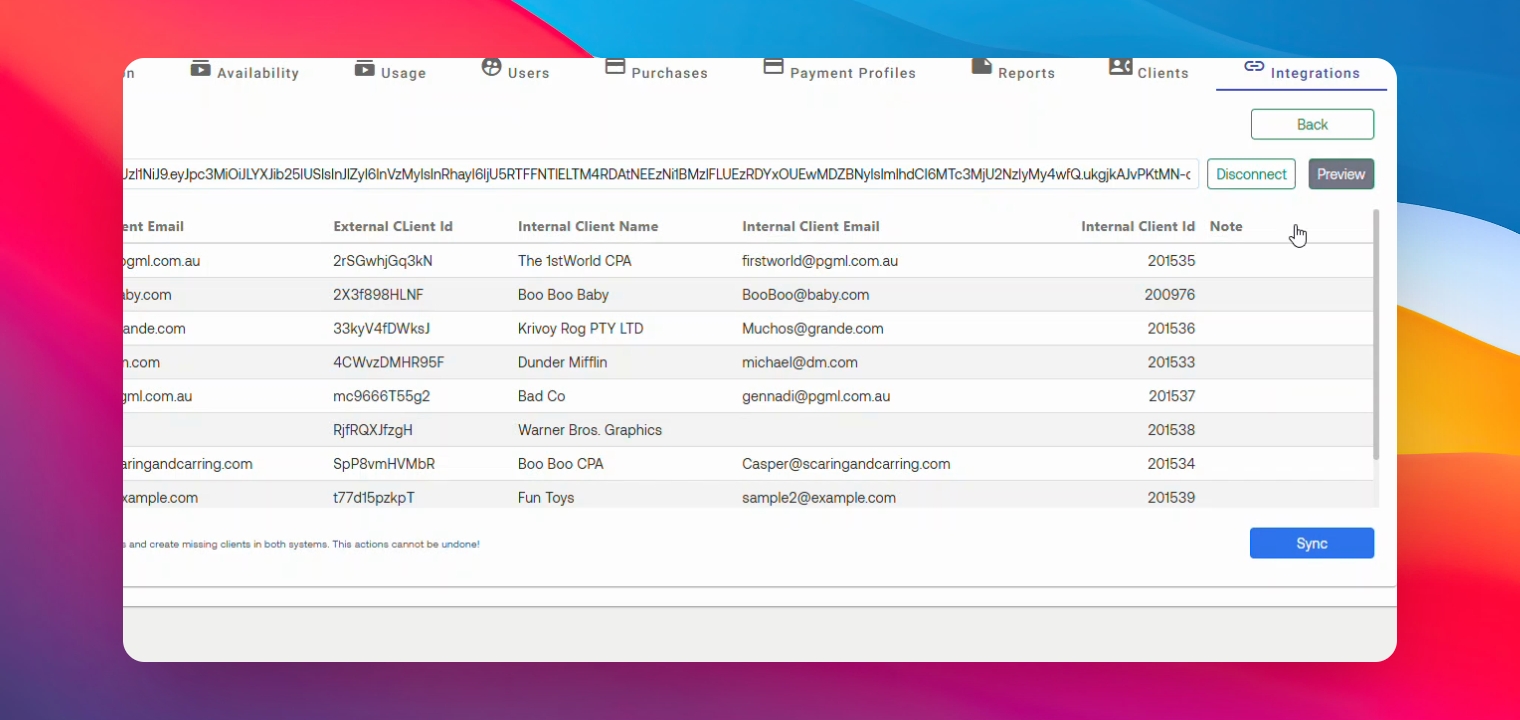
Step 4: Preview Clients (Optional)
If you'd like to sync your RCReports clients with your Karbon clients, click the Preview button to view clients not yet synced with Karbon.
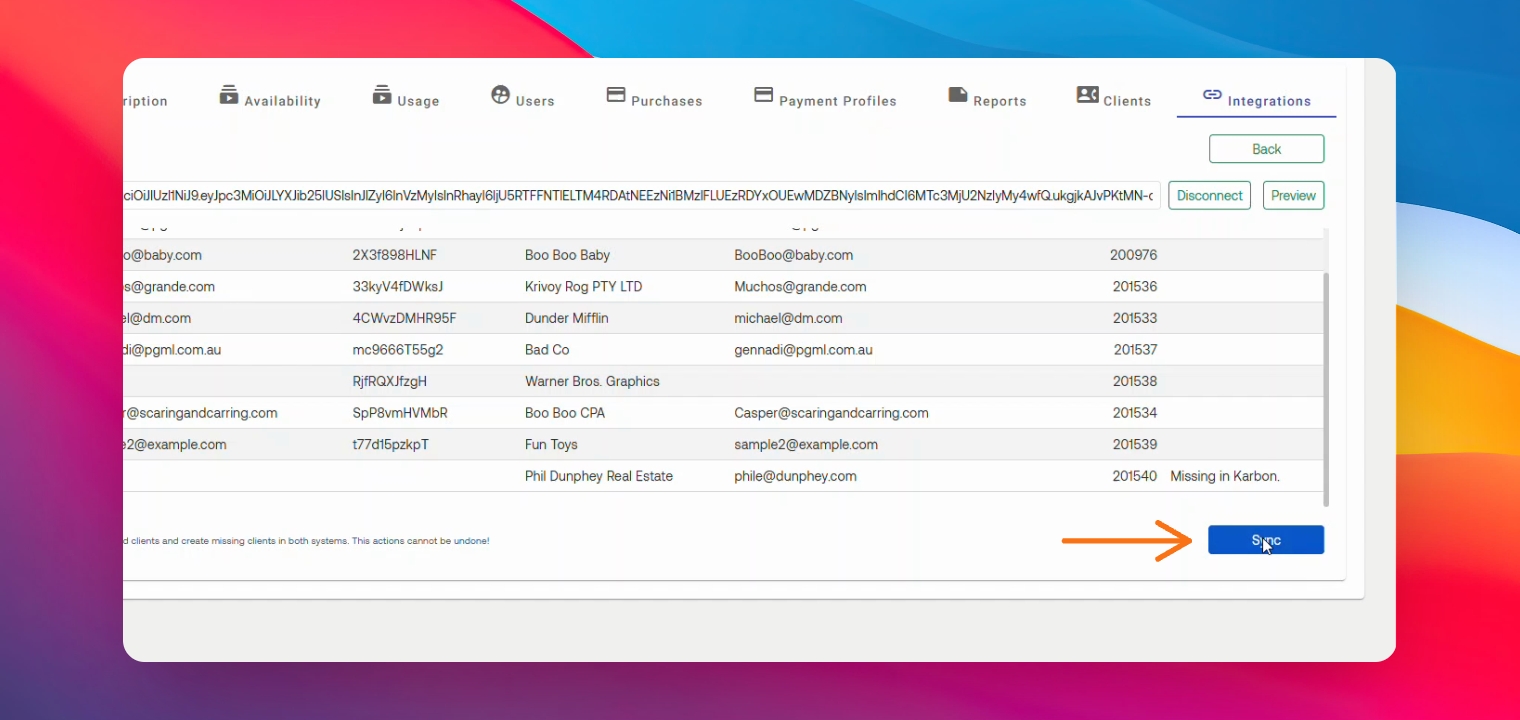
Step 5: Sync Clients
Click Sync to export your RCReports clients into Karbon and import your Karbon clients into RCReports.
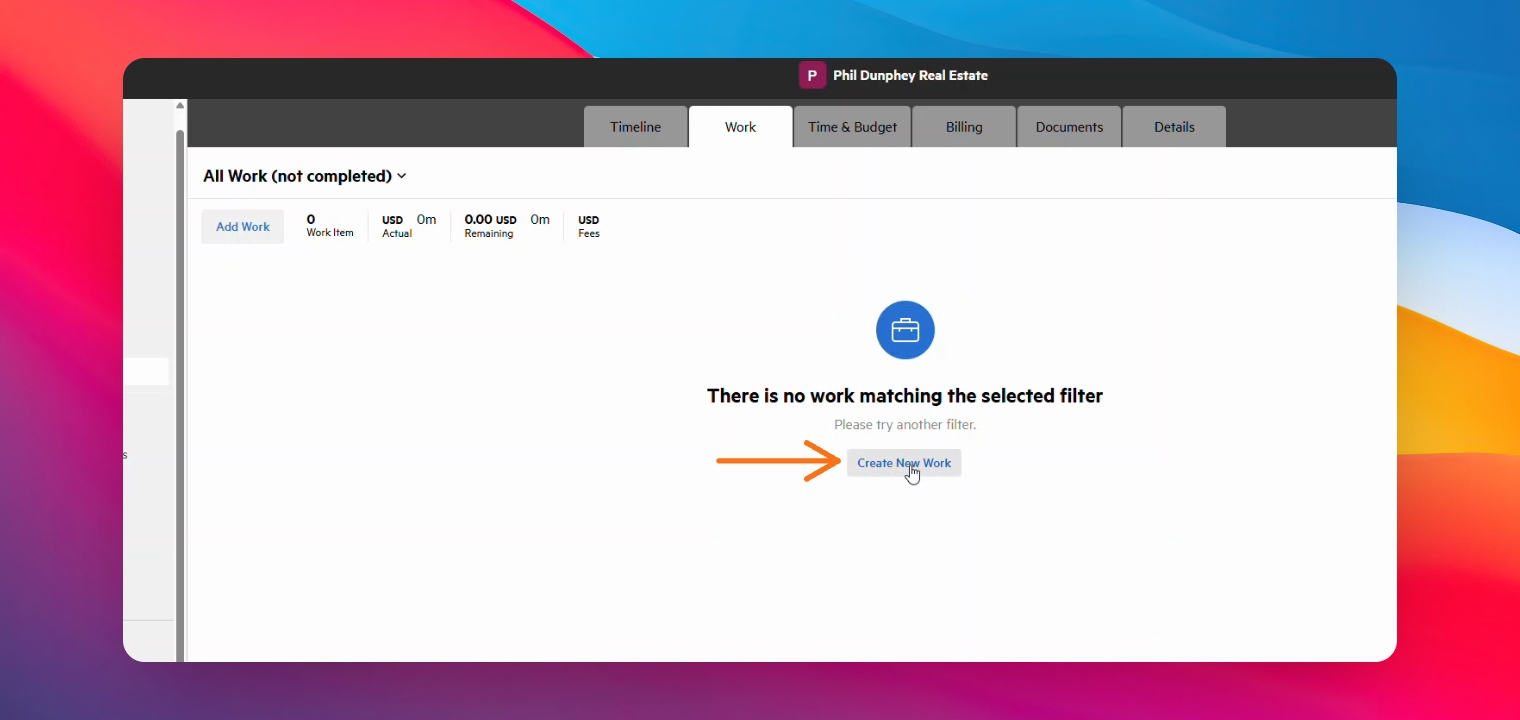
Step 6: Select a Contact and Create Work
After selecting a Contact in Karbon, go to the Work tab and click Create New Work.
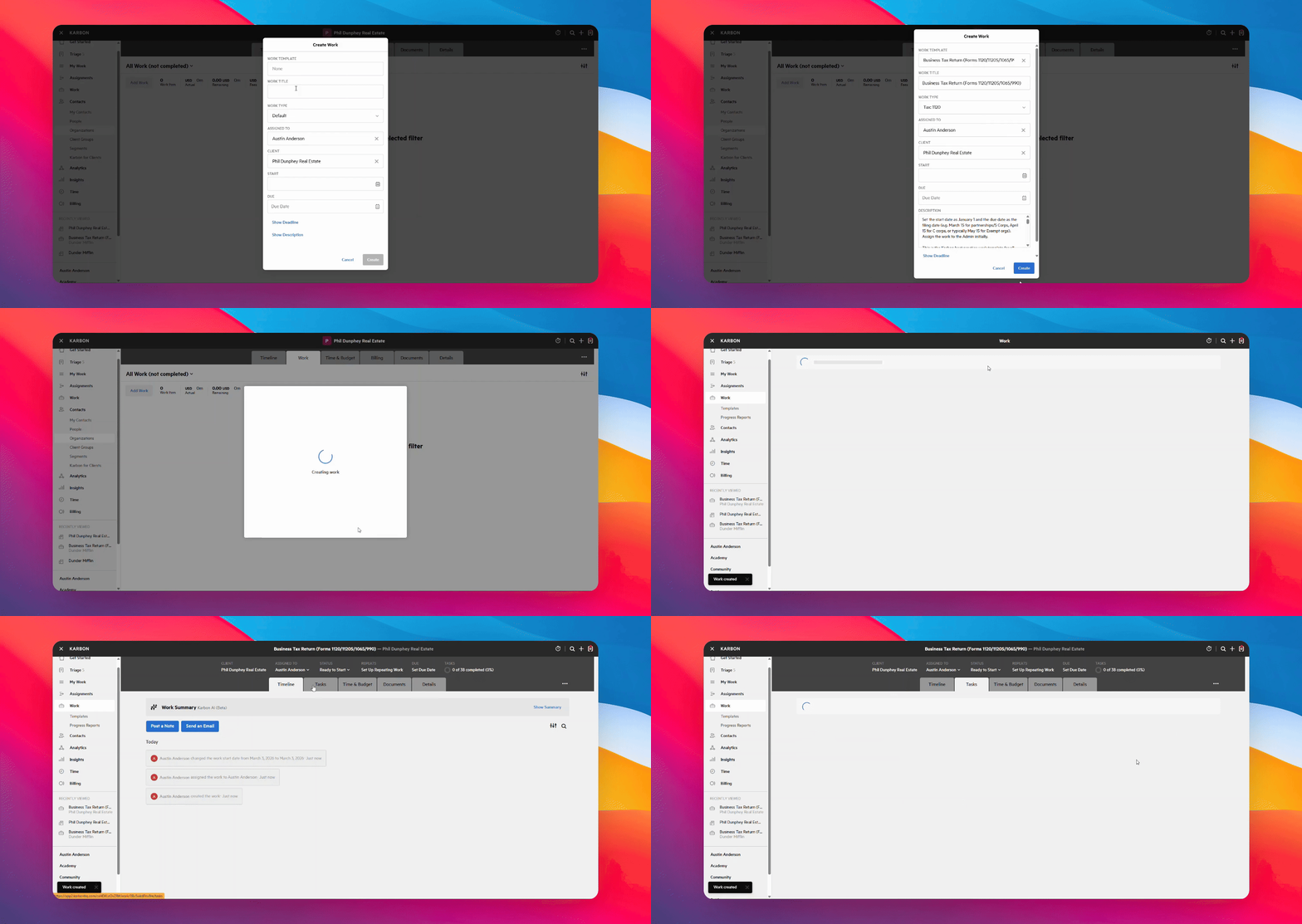
Step 7: Select Template
Select a work template and go to the Tasks tab.
Step 8: Add Step
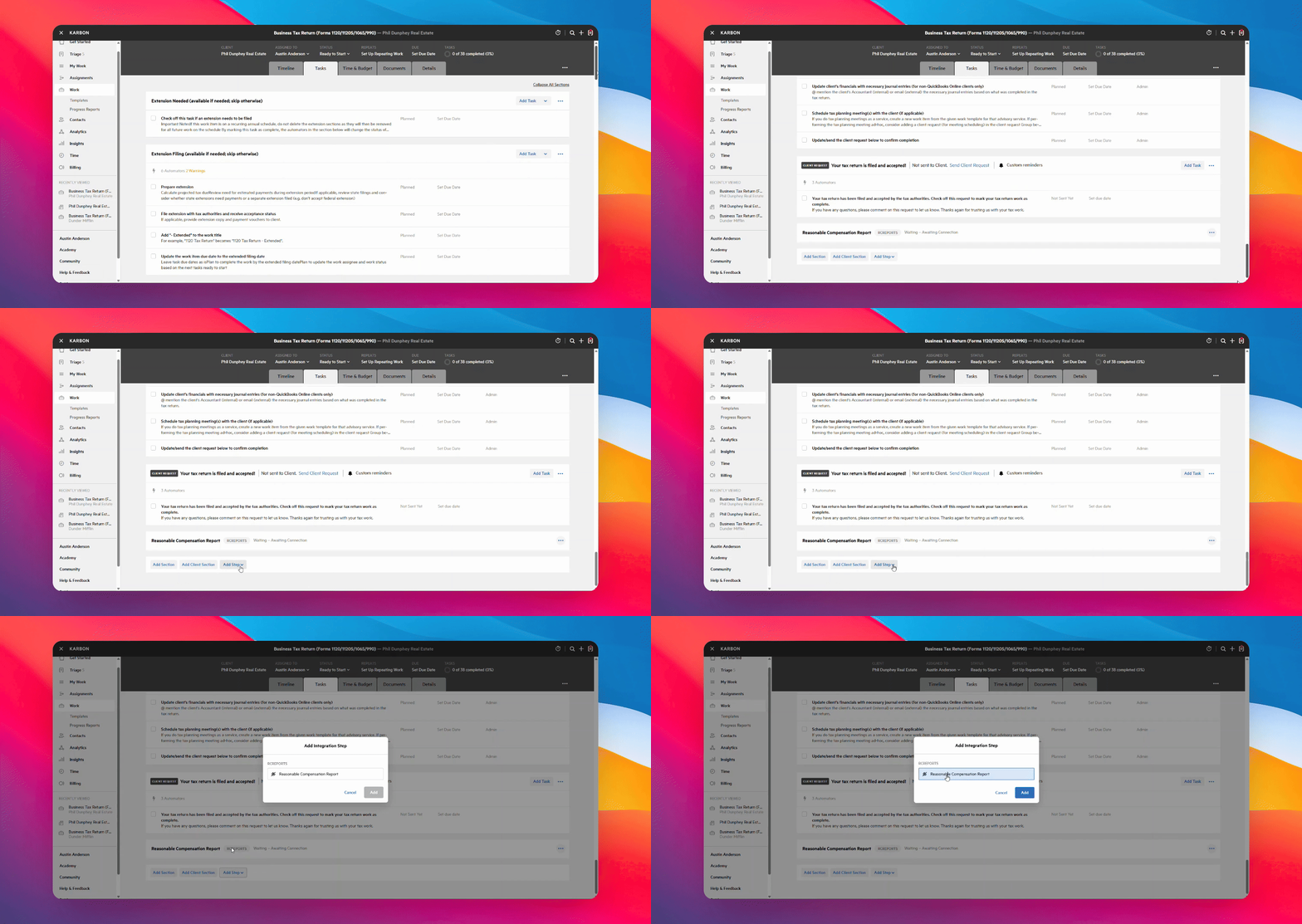
Scroll to the bottom of your Tasks and click Add Step, select Integration, and choose Reasonable Compensation Report.
Step 9: Create Interview
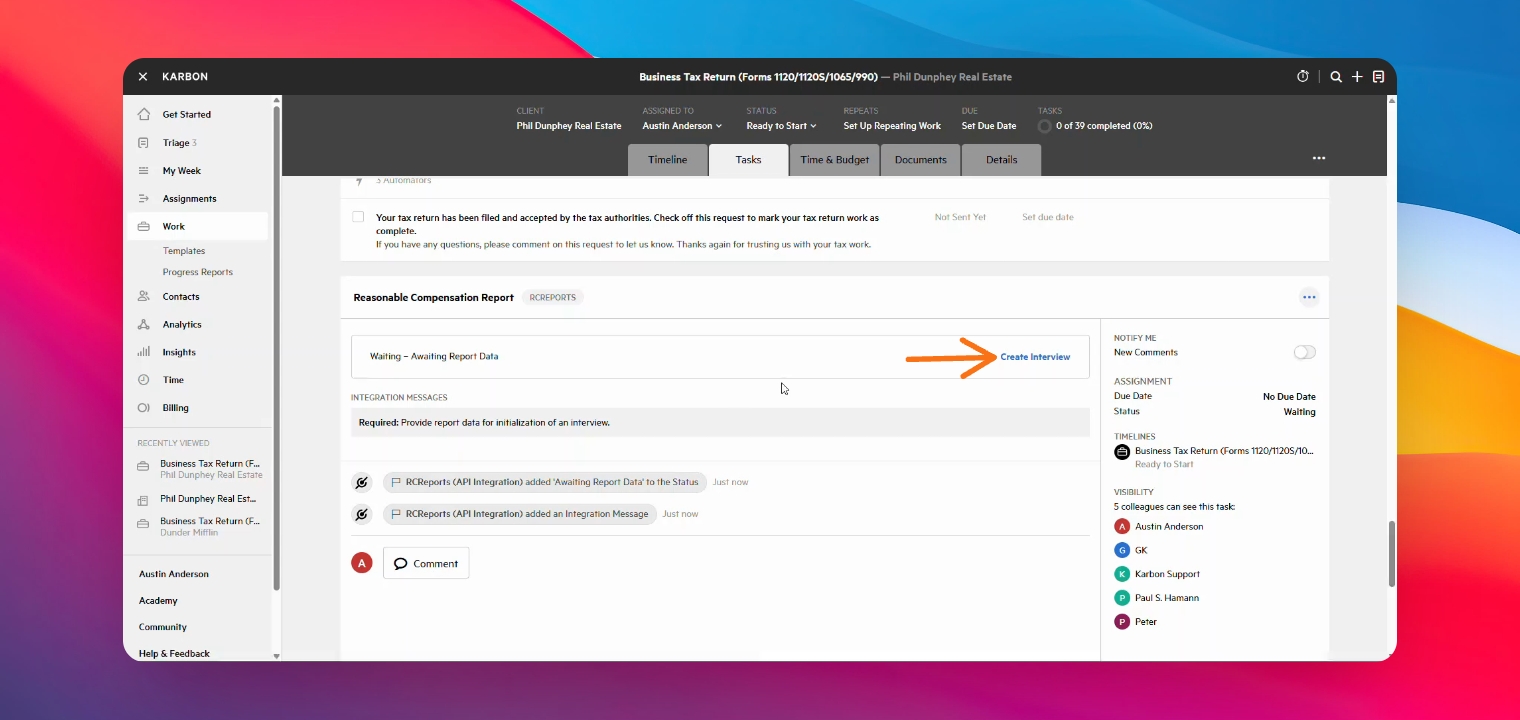
Click on Reasonable Compensation Report then click Create Interview.
Step 10: Specify Report Purpose
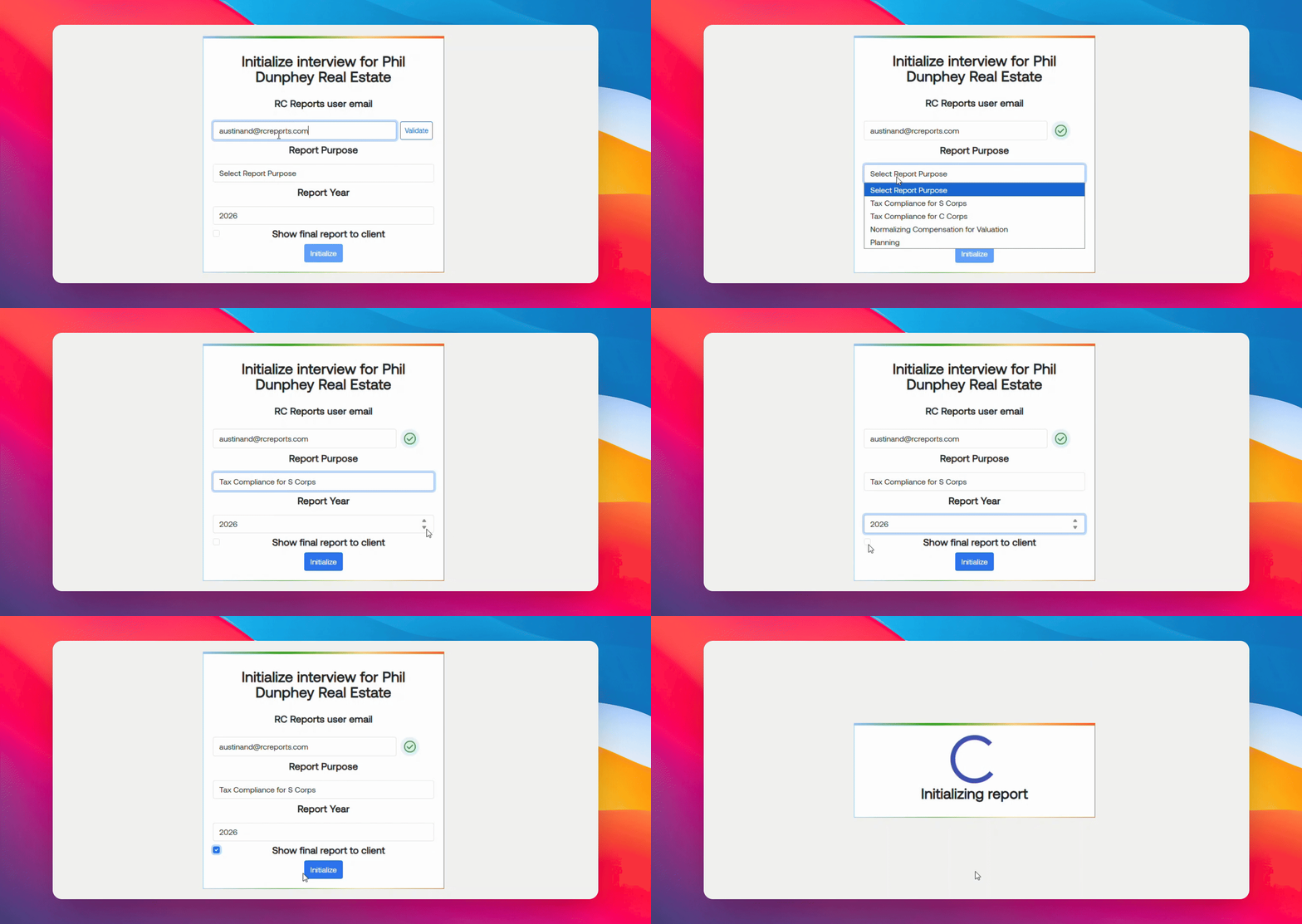
Validate your email address by entering the email address associated with your RCReports Login. Then select the Report Purpose, Report Year, and Initialize.
Step 11: Complete Interview
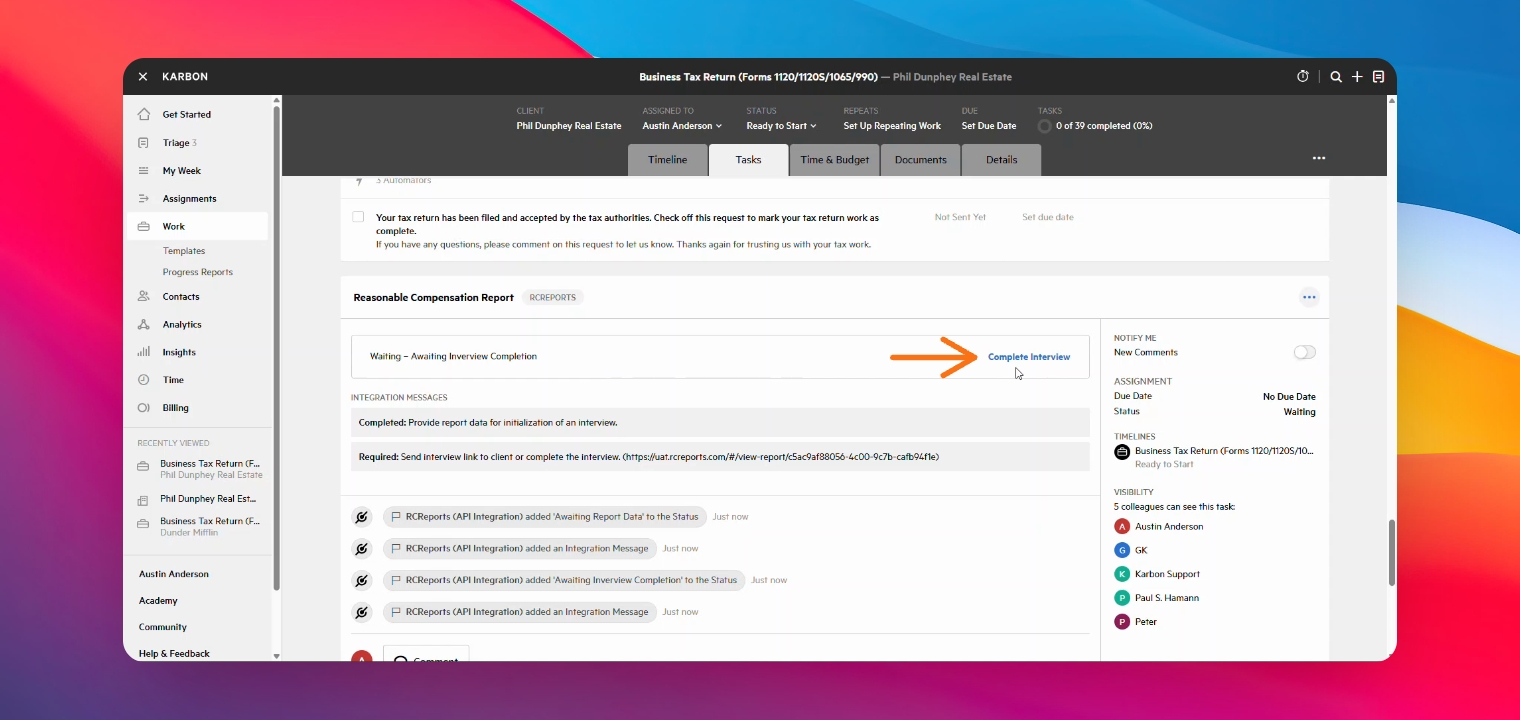
Click on the Complete Interview link to complete the Reasonable Compensation Interview for your client.
Step 12: Answer Questions, View, and Finalize Report
After completing the Client Interview you can View the Report or click Finalize to lock the report.
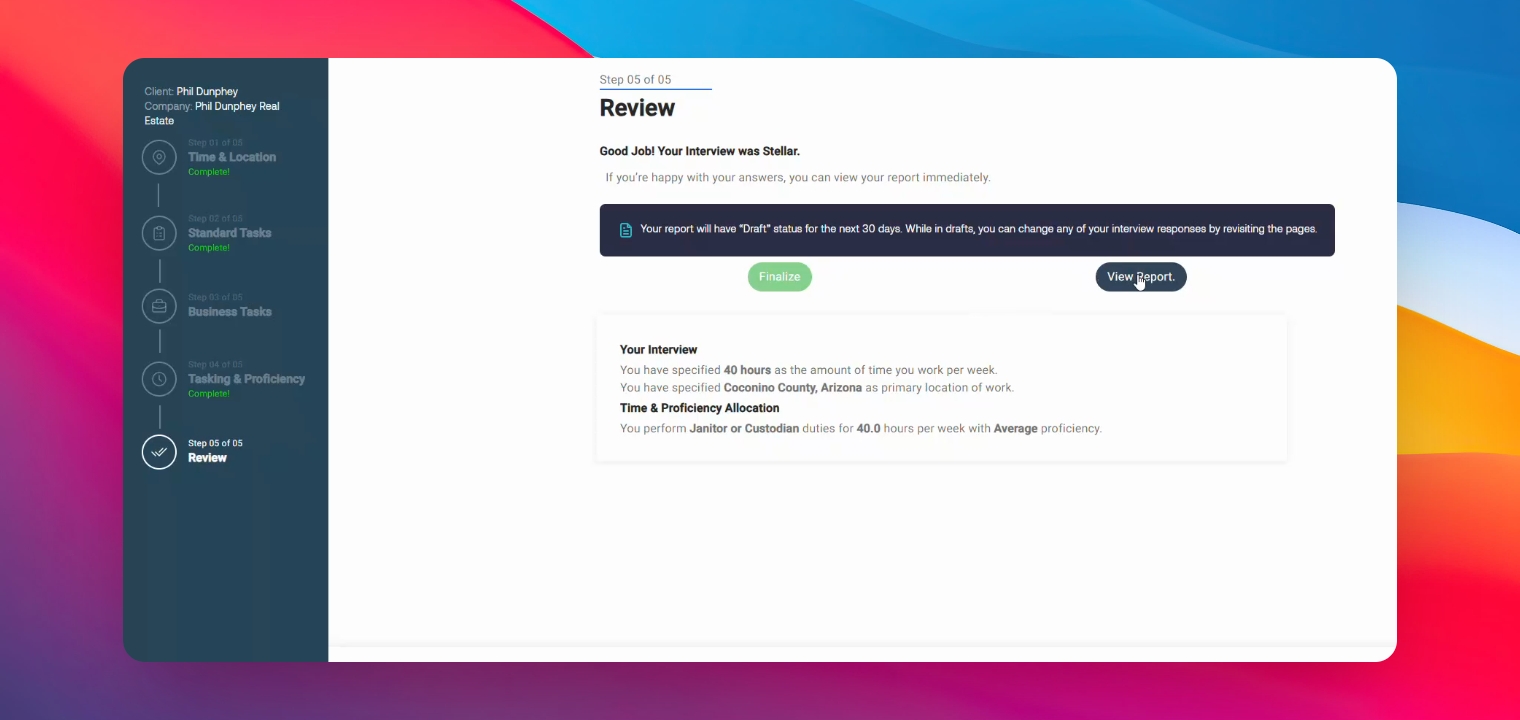
Step 13: View Report
When done, a copy of the report will be saved to your client's profile in Karbon.