

Cloning reports is useful for updating a previous report filed for a client to create a reasonable compensation for the current year. Here's how to do it:
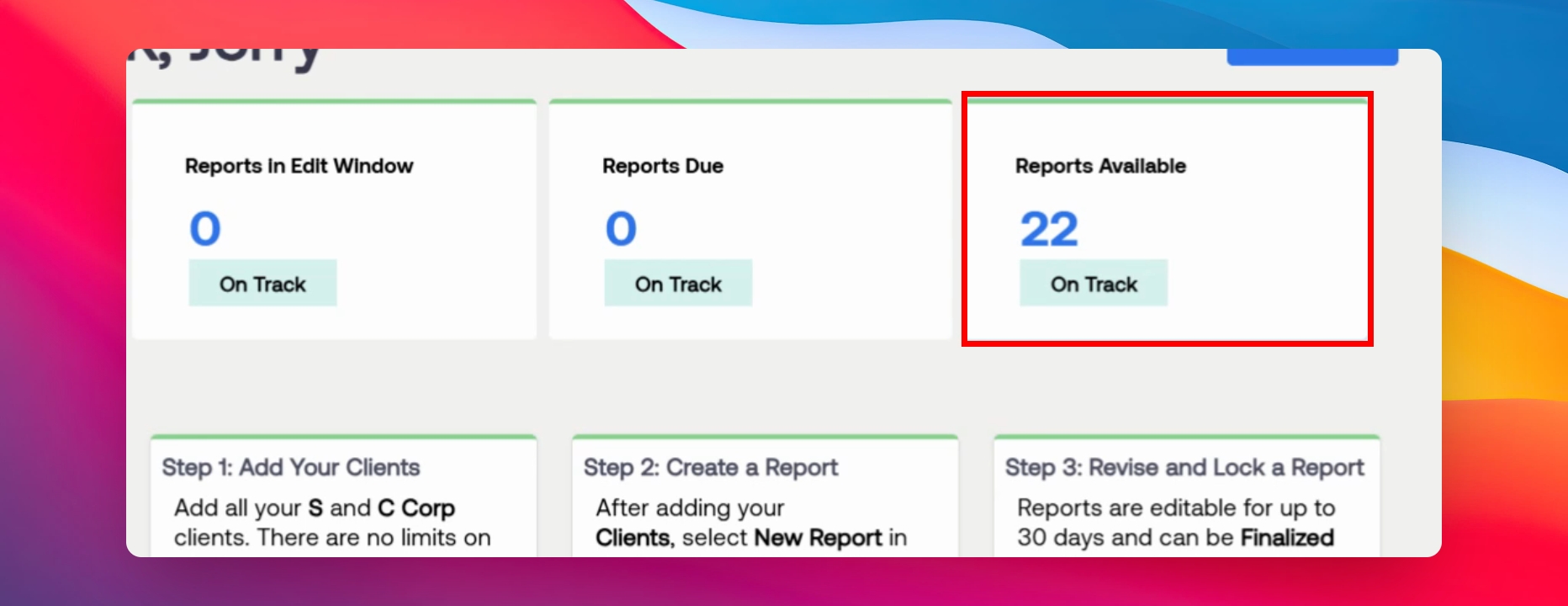
Step 1: Check Available Reports
Ensure you have available reports from your dashboard. If not, the clone report button will not appear until more reports are purchased.
Step 2: Navigate to the Client
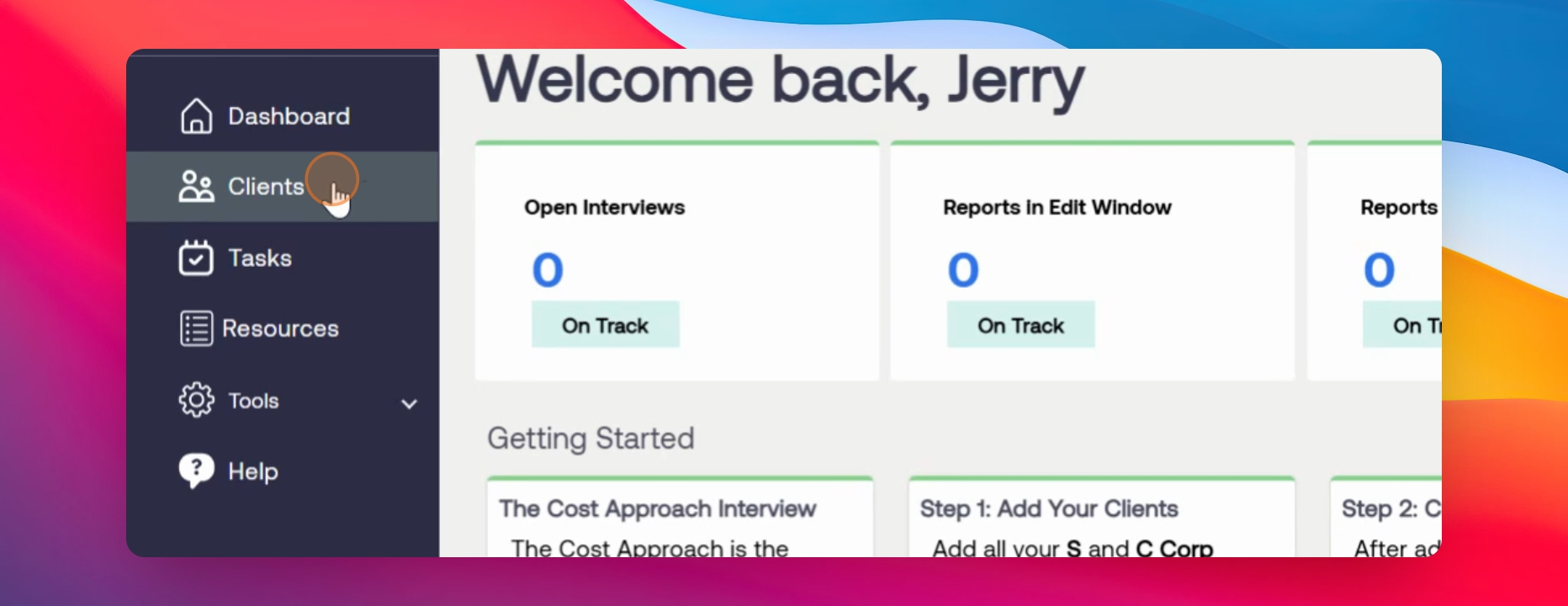
Go to the sidebar and click on Clients.
Step 3: Locate the Client and Report to Clone
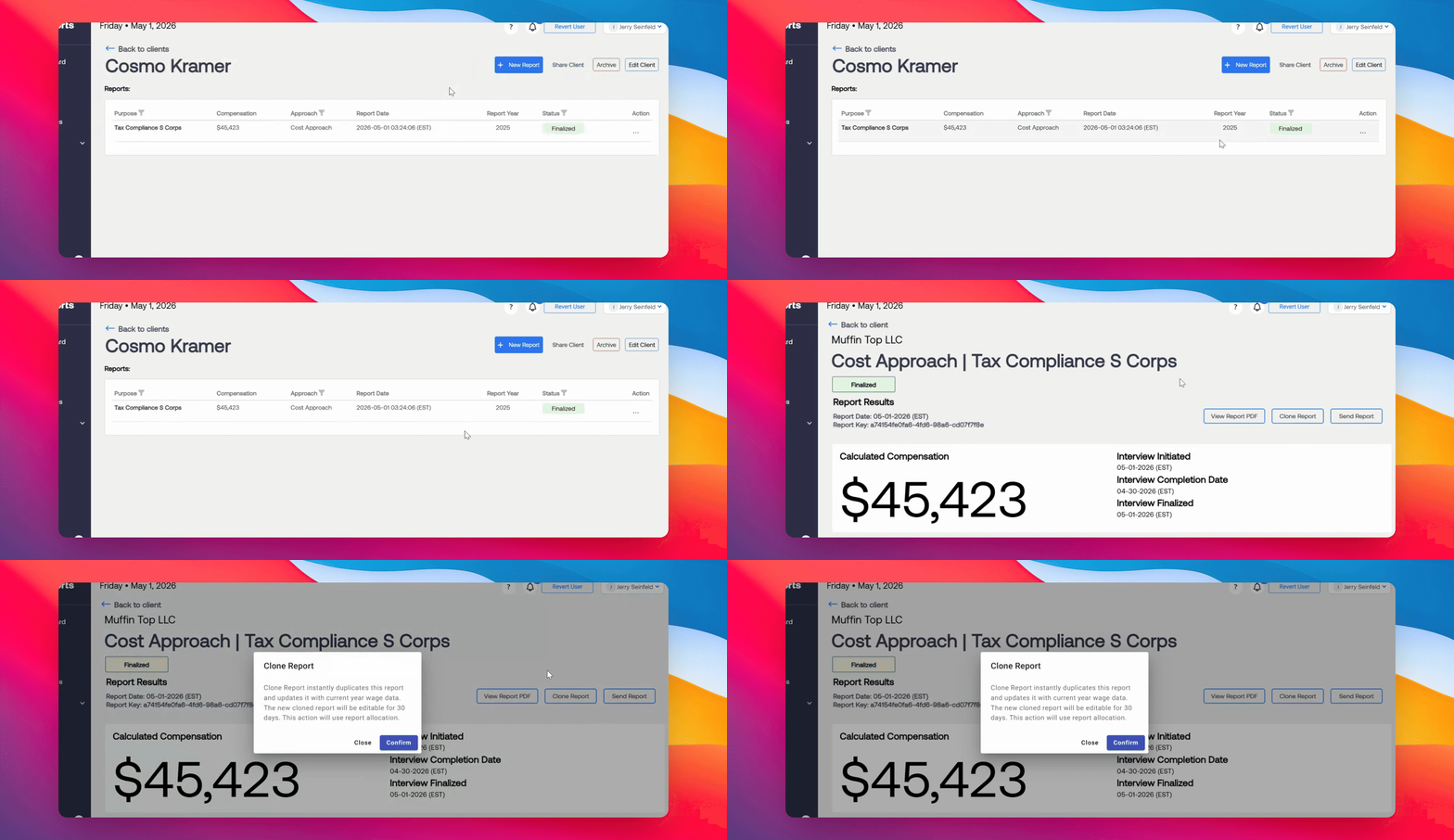
Selected the desire client and identify the report from a previous year that you want to clone.
Step 4: Clone the Report
Click on the report, then select Clone Report. A pop-up will appear stating that the cloned report updates with current year wage data and is editable for 30 days. Click Confirm to proceed.
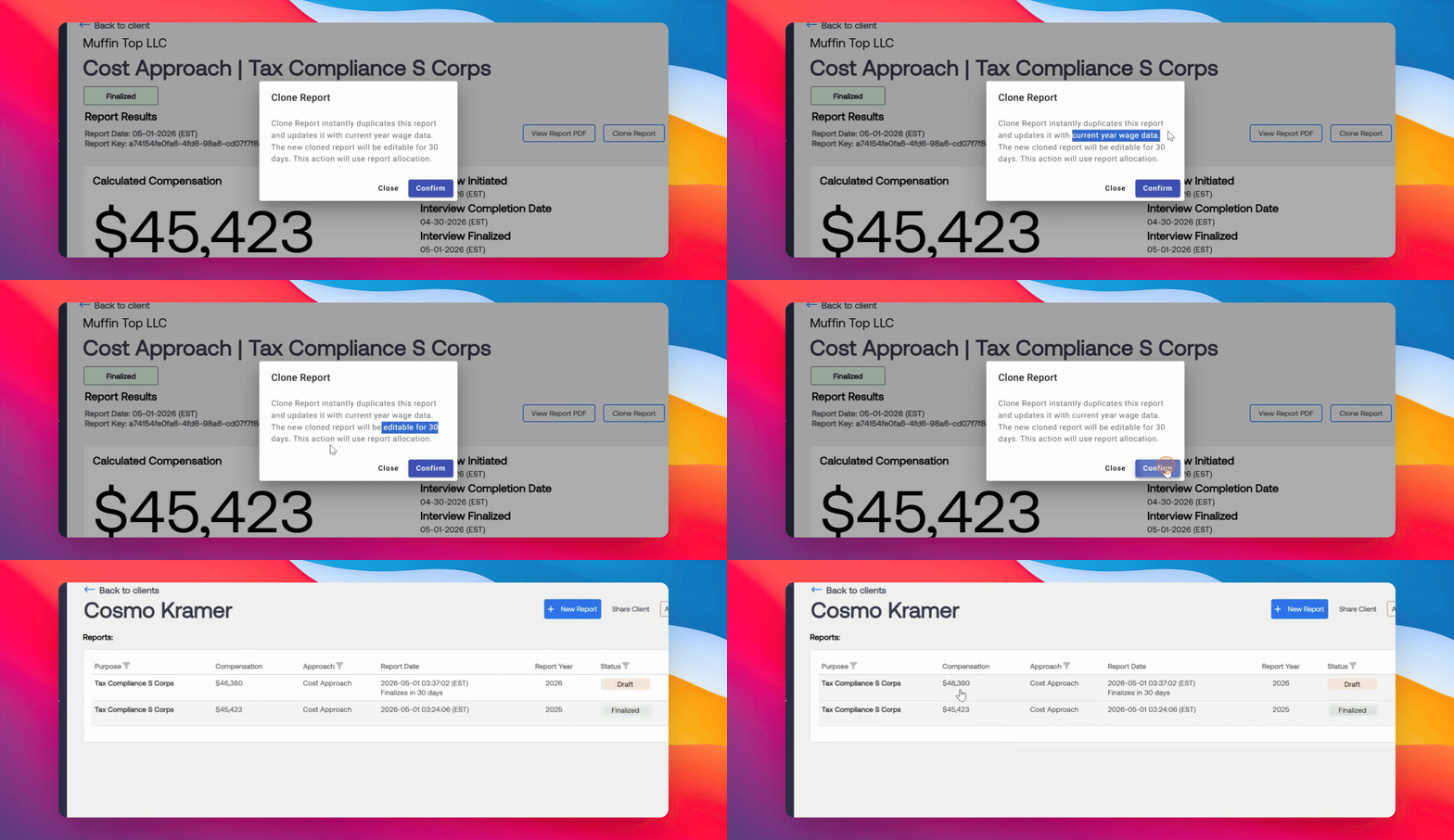
The Cloned Report will appear with the adjusted compensation for the current year.
Step 5: Open and Review Interview
Open the cloned report. Before finalizing, you must first review the interview section to confirm all details are correct, including hours, location, tasks, proficiency, and time spent on each task for the current year.
Note: A worker's responsabilities and performance often change year to year. Make according adjustments in the client interview page to generate an accurate compensation.
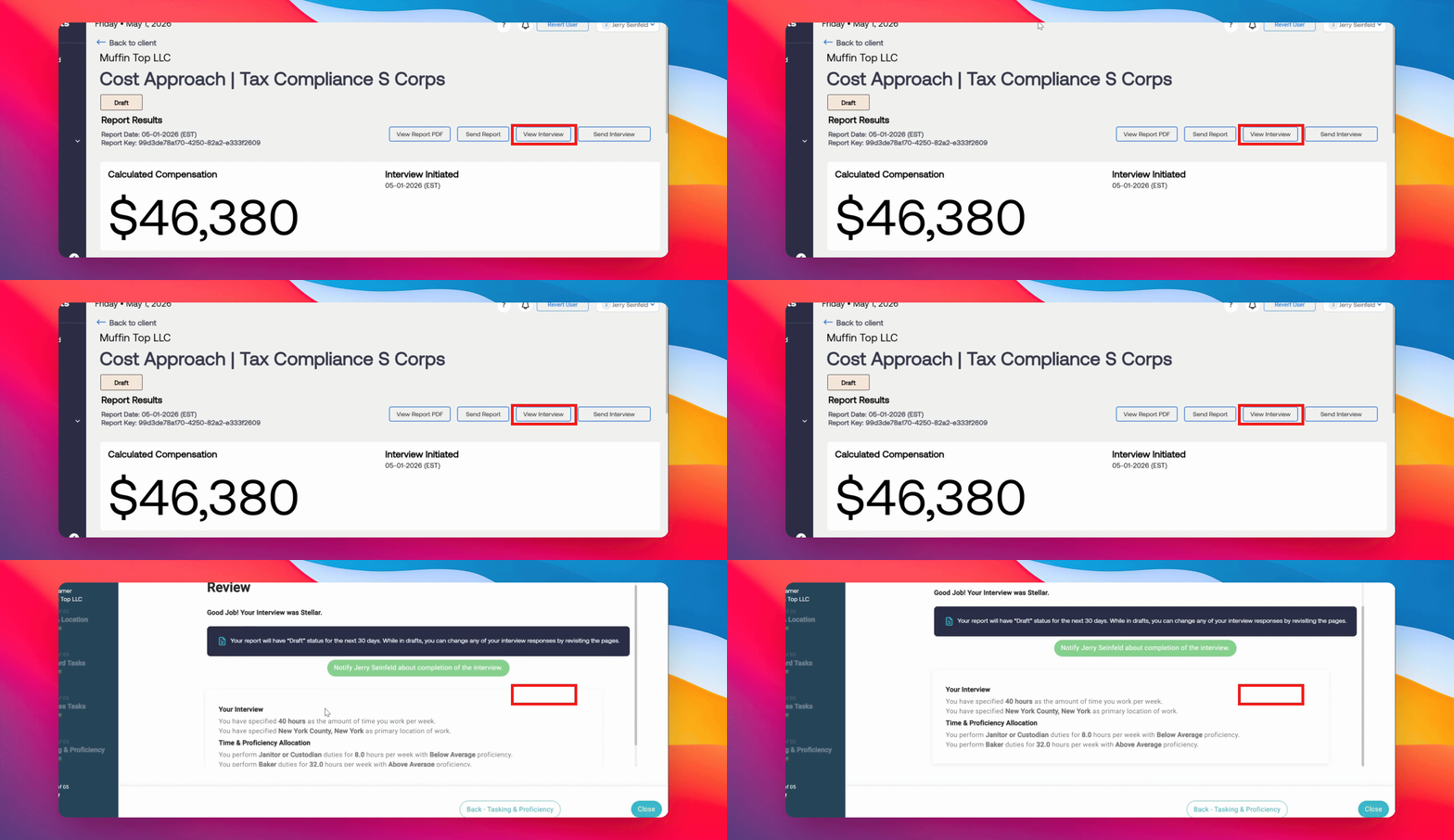
When finished, click the Close button in the bottom right corner of the client interview review.
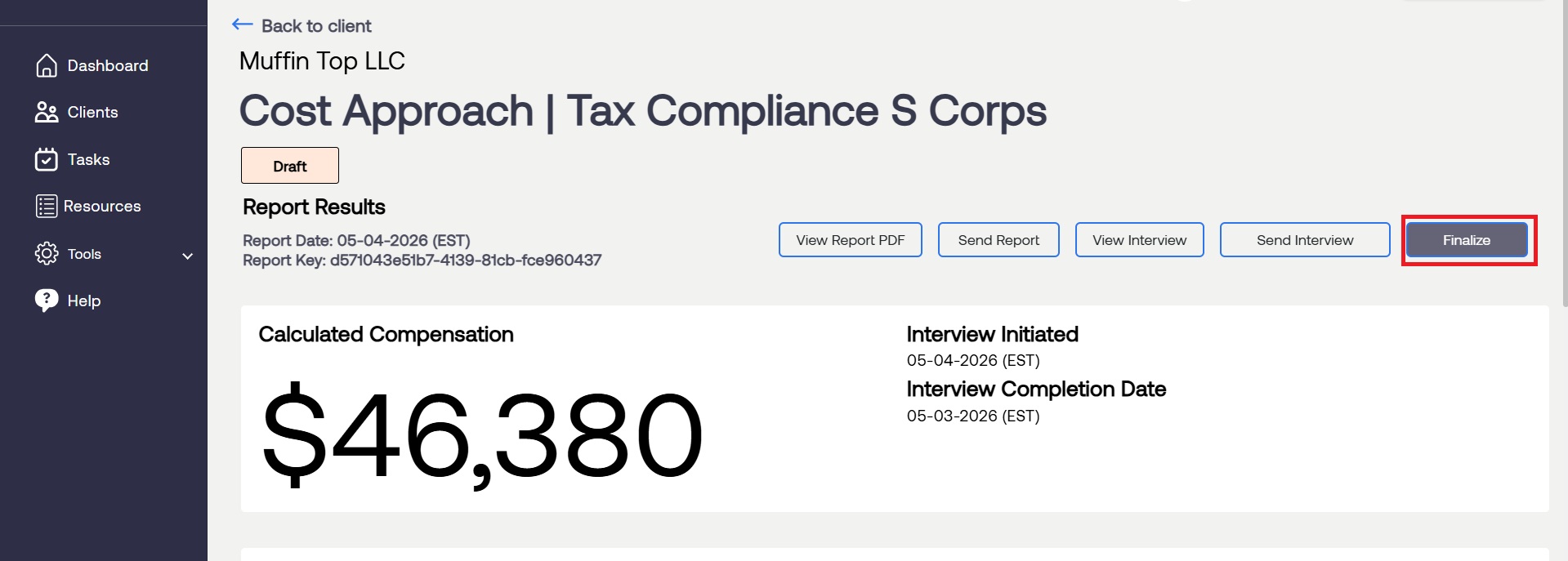
Step 6: Finalize the Report
Click on the draft report again and select the option to finalize. Confirm your choice in the pop-up box to complete the process.
If something is wrong, contact RCReports Support for questions and concerns at 720-279-8800 or support@rcreports.com